Events Table
The events table is the central display surface of every event-generator study. After event generation completes, the events table fills with one row per event detected during the run. Aquila's virtualized table can render millions of rows without slowing down.
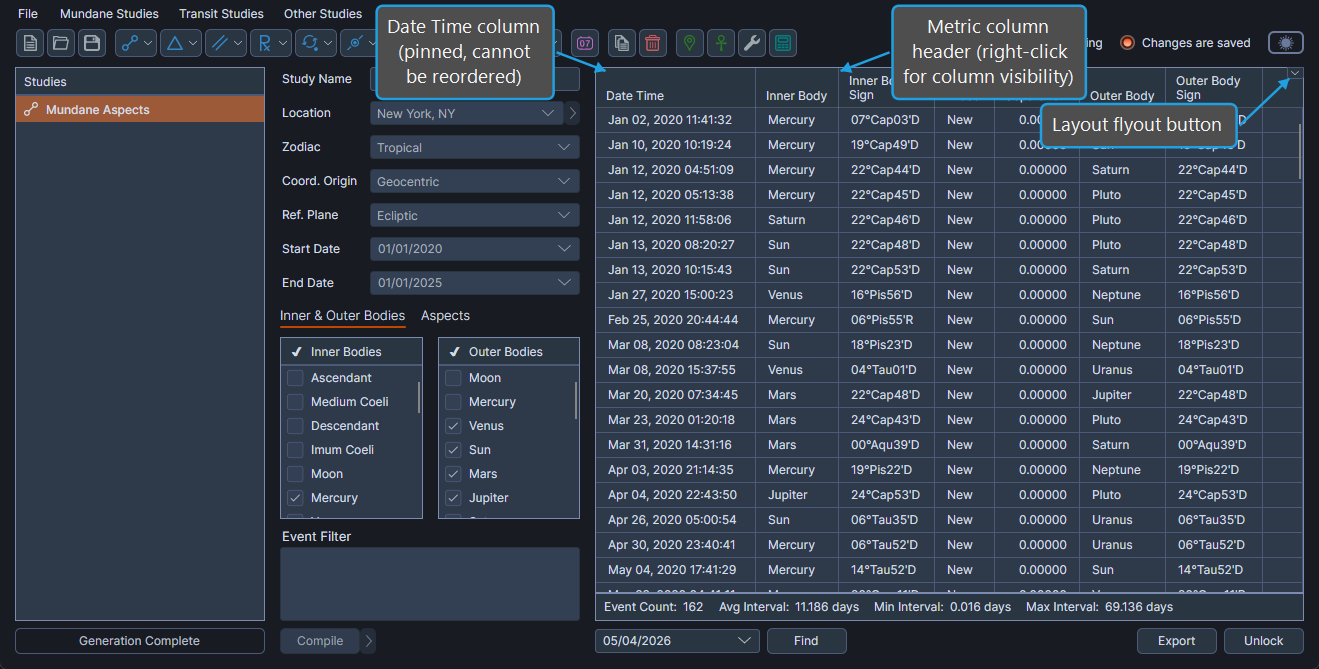
The events table's columns are not sortable. Events are presented in chronological order, oldest first. Use Find Nearest Event to scroll the table to a particular date.
Reorder Columns
To change the left-to-right order of columns:
- Press and hold a column header in the events table, drag it to the desired position, and release the mouse button.
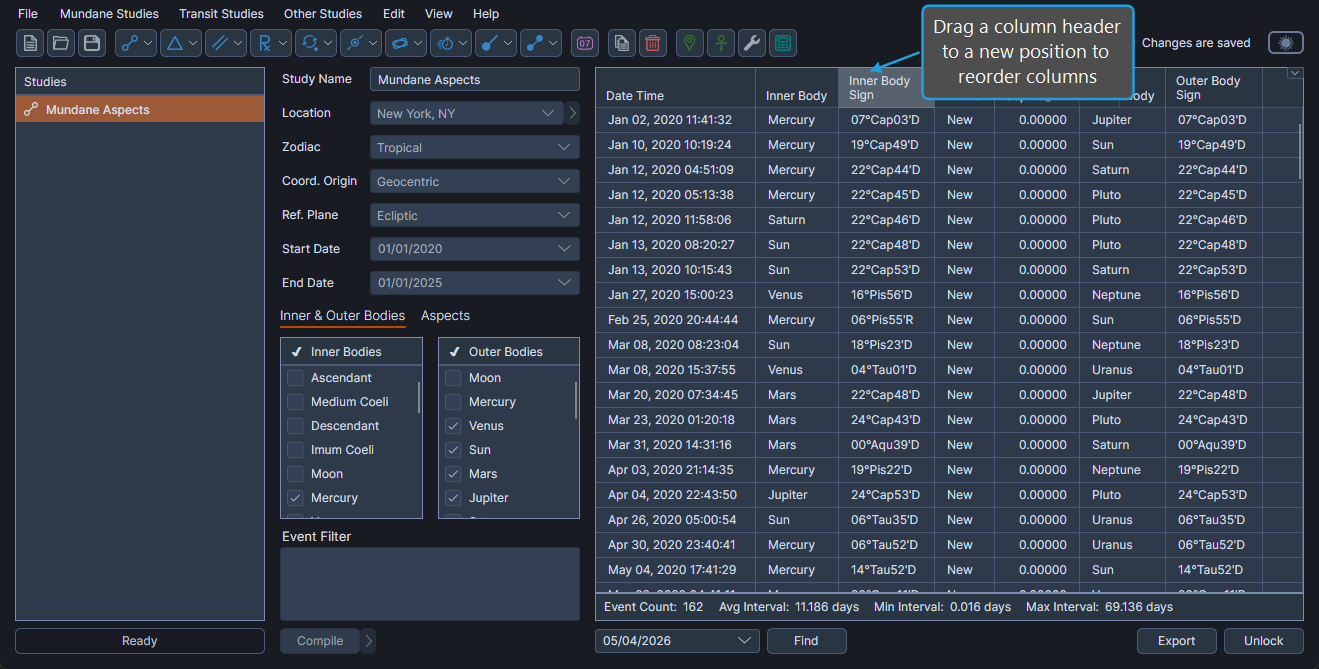
Columns appear in the new order until you save a different default layout (see Events Table Layout Menu).
The Date Time column is pinned in place and cannot be reordered.
Select Event Rows
To select rows for inspection or copy operations:
- Click a row in the events table. Shift-click to extend the selection to additional rows, or Ctrl-click to add individual rows to the selection.
The selected rows are highlighted. Many of the row-level operations (copy, find, etc.) work on the current selection.
Show or Hide Columns
To toggle which metric columns are visible, right-click on any of the column headers to open a context menu and check or uncheck the desired column names. See also: Events Column Visibility Menu.
Save the Layout as Default
To save the current column layout (visibility, order, widths) as the default for the current study type, see Events Table Layout Menu.
Copy and Export Events
The events table supports several ways to share events: