Events Table Layout Menu
The Events Table Layout Menu saves and applies the default column layout (visibility, order, widths) for each event-generator study type. The menu is opened from the layout flyout button at the top-right of the events table.
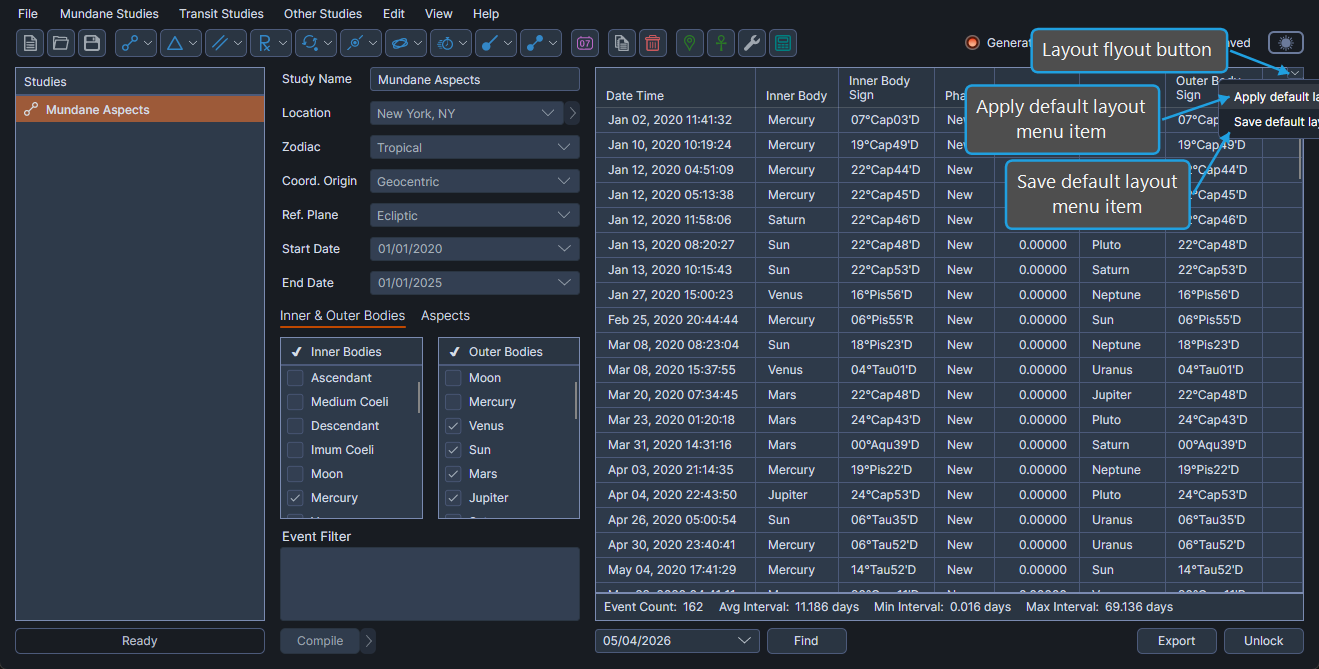
The default layout is per study type. A layout saved on a Mundane Aspects Study applies to every Mundane Aspects Study you open in any workspace; it does not apply to a Lunar Phases Study or a Transiting Aspects Study.
Apply Default Layout
To restore the saved default column layout for the current study type:
- Click the layout flyout button at the top-right of the events table.
- Click Apply default layout in the menu.
The events table columns reset to the saved default for the current study type.
Save Default Layout
To capture the current column layout (which columns are visible, their order, and their widths) as the new default for the current study type:
- Click the layout flyout button at the top-right of the events table.
- Click Save default layout in the menu.
The current layout becomes the new default. Future studies of the same type will start with this layout.