Chart Wheel Context Menu
Right-clicking a body glyph or an aspect chord on the wheel opens a small menu over the mark. It exists to lift a position or an aspect out of the drawing so you can paste it into notes, an email, or another application.
Overview
The menu is built for the mark you right-clicked, so it never offers a command that does not apply. A body offers Copy Position; an aspect offers Copy Description.
The copied text is built from the snapshot the wheel is currently displaying, in the coordinate format this window is set to on its display strip. It can therefore never disagree with what is on screen.
Signs, houses, and cusps carry no commands. Right-clicking the outer band opens no menu at all.
Procedures
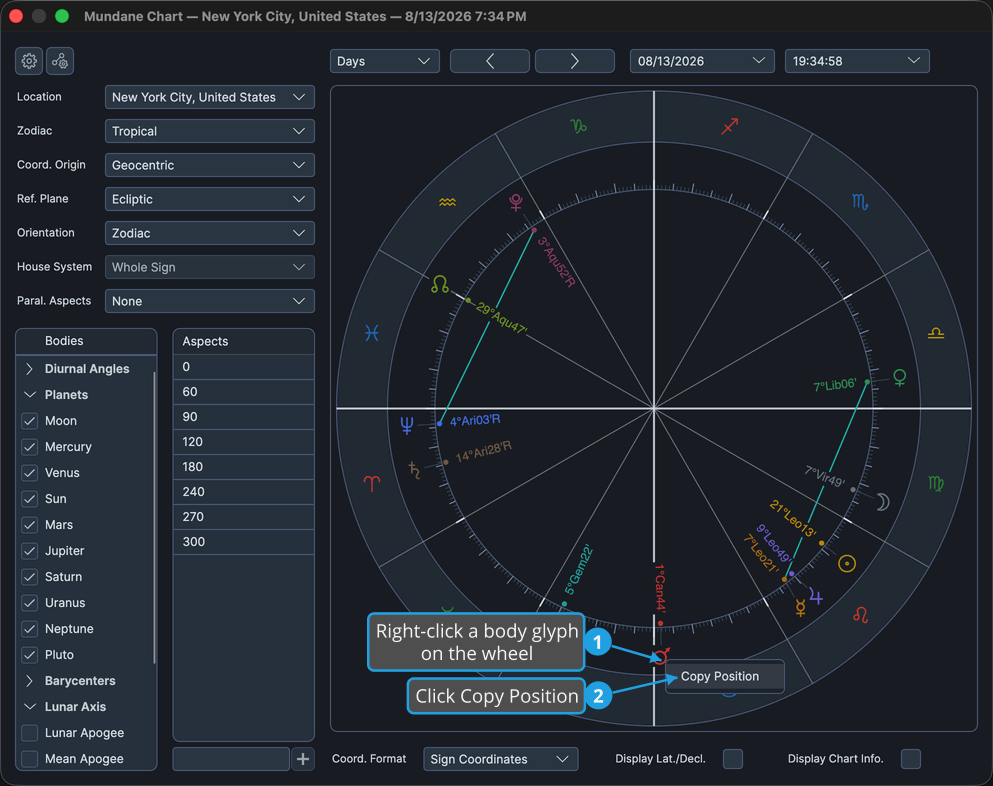
Copy a Body's Position
To put a body's position on the clipboard:
- Right-click a body glyph on the wheel.
- Click Copy Position.
The position is on the clipboard, written in this window's coordinate format. Paste it anywhere.
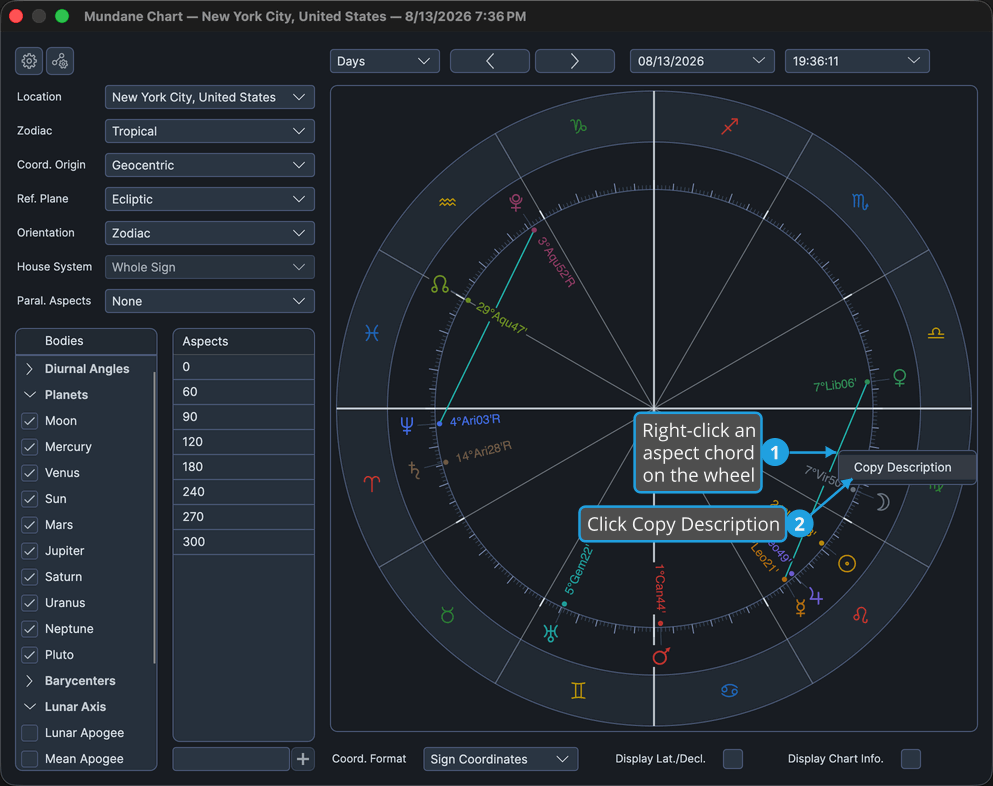
Copy an Aspect's Description
To put an aspect's description on the clipboard:
- Right-click an aspect chord on the wheel.
- Click Copy Description.
The description is on the clipboard, written in this window's coordinate format. Paste it anywhere.
Hovering a mark before you right-click makes it easier to hit on a busy wheel: a body glyph enlarges and an aspect chord thickens under the pointer. See Chart Wheel.
Reference
Commands by mark
| Mark you right-click | Commands offered |
|---|---|
| Body glyph | Copy Position |
| Aspect chord | Copy Description |
| Sign, house, or cusp | None. No menu opens. |