Open a Chart
Compass puts a chart on screen in one gesture. Choose the chart type and a new chart window opens with sensible defaults already applied, ready for you to adjust in place.
Overview
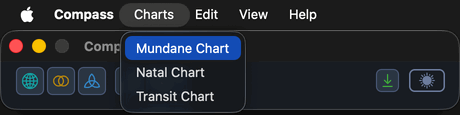
There are three chart types, and each has an entry on the Charts menu and a matching button on the toolbar. Both routes run the same operation; the only difference is which type you pick.
On macOS the Charts menu sits in the system menu bar at the top of the screen and offers the same three items.
| Chart type | What it draws | Details |
|---|---|---|
| Mundane Chart | The sky over a location at a moment, with no natal reference. | Mundane Chart |
| Natal Chart | The sky at the moment and place recorded in a saved natal record. | Natal Chart |
| Transit Chart | A moving sky against a fixed natal record, as two point sets on one band. | Transit Chart |
A new chart never asks you to configure anything first. It opens with:
- The default location and the current moment for a Mundane or Transit chart.
- The default natal record at its own moment for a Natal chart, and as the natal reference for a Transit chart.
- The zodiac, coordinate origin, and reference plane set on the Chart Settings window's Defaults tab.
- Bodies and aspect angles taken from the default presets.
Several chart windows can be open at once, and each keeps its own settings. Adjust anything you want in the settings column once the window is on screen.
The chart commands stay disabled until Compass has finished loading its saved settings, presets, locations, and natal records. This takes a moment after launch.

Procedures
Open a Mundane Chart
To draw the sky over a place at a moment:
- Click Charts on the menu bar.
- Click Mundane Chart.
A chart window opens titled for the Mundane chart, drawn for the default location at the current moment. The wheel carries a single point set with the aspects matched among them, and no natal reference.
The Mundane chart button on the main toolbar does the same thing in one click.
Open a Natal Chart
To draw a saved record's chart:
- Click Charts on the menu bar.
- Click Natal Chart.
A chart window opens titled for the Natal chart, drawn for the default natal record at its own moment. No Location row appears in the settings column and no date and time picker appears in the time navigation band, because the record supplies both.

Open a Transit Chart
To compare a moving sky against a natal record:
- Click Charts on the menu bar.
- Click Transit Chart.
A chart window opens titled for the Transit chart, drawn for the default location at the current moment with the default natal record as its natal reference. The aspects are matched between the two point sets, and the settings column is organized as two stacked tab pairs.
