Chart Window
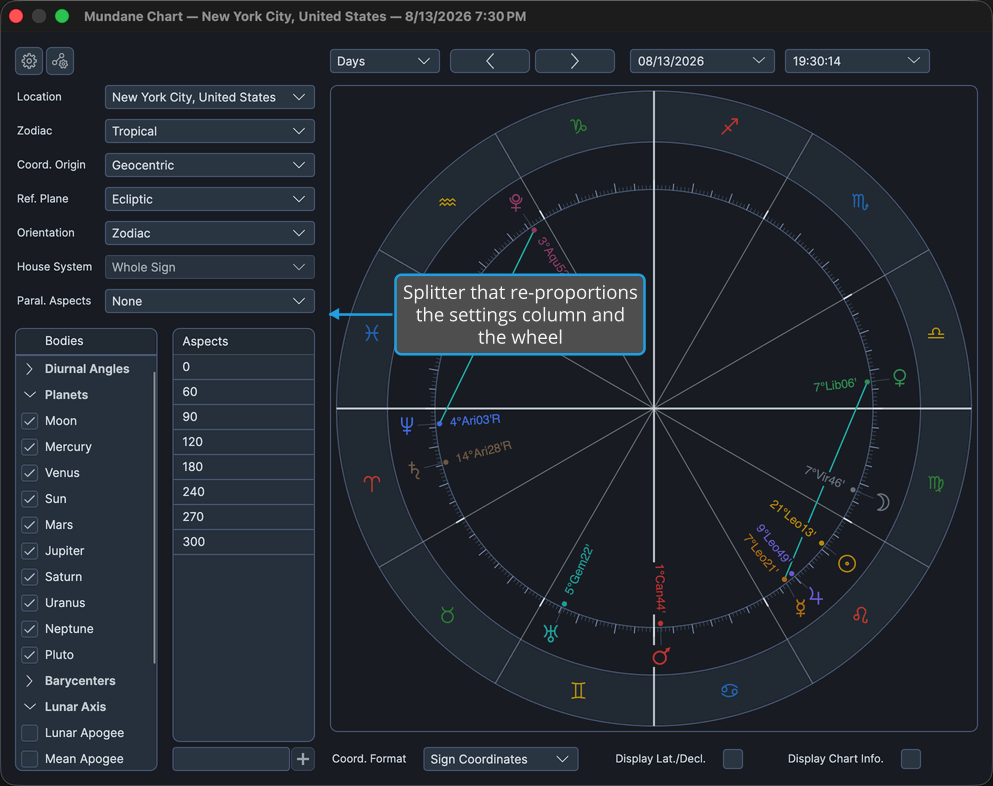
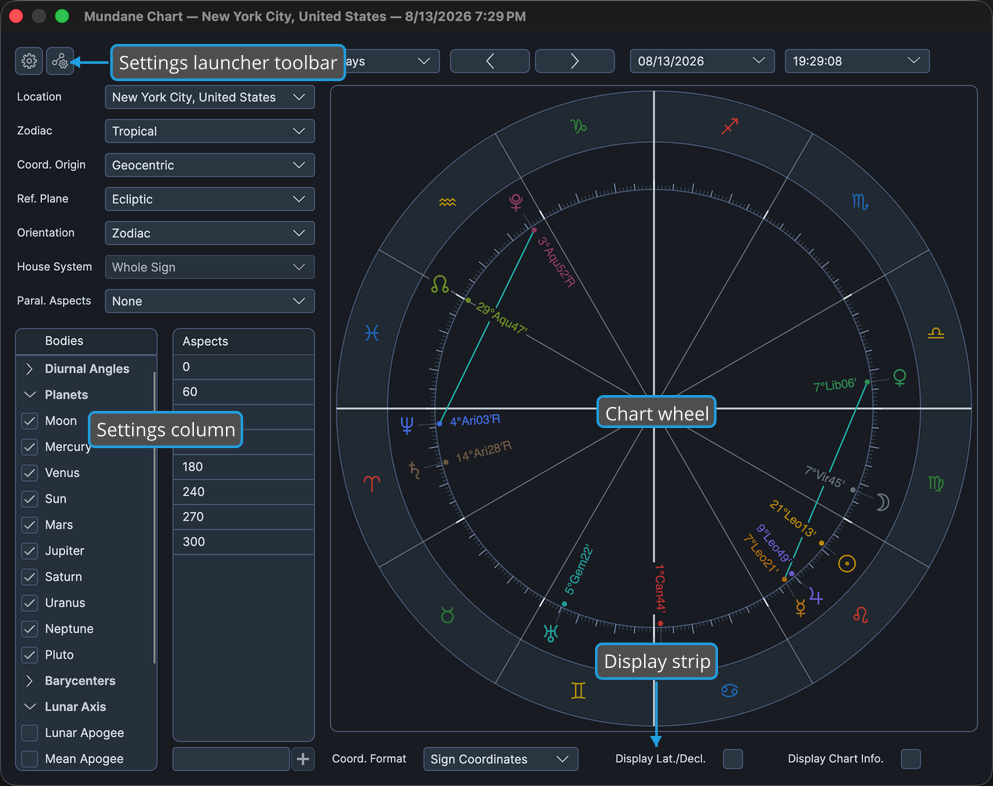
Every Compass chart, whatever its type, lives in the same window. It is laid out as a settings column on the left and the wheel on the right, with a drag splitter between them, a toolbar band across the top, and a display strip beneath the wheel.
Because the layout is shared, what you learn on one chart type carries straight to the others. The window title and its title-bar icon follow the chart type, and several chart windows can be open at once, each holding its own settings.
In This Window
- Chart Window Toolbar: the two settings launcher buttons at the top left, above the settings column.
- Chart Time Navigation: the controls at the top right, above the wheel, that move the chart through time.
- Chart Wheel: the drawing itself, with the zodiac band, the bodies, and the aspect chords between them.
- Chart Calculation Messages: the banner between the toolbar band and the wheel that reports on the calculation behind the drawing.
- Chart Display Options: the strip beneath the wheel carrying the three display choices that belong to this window alone.
- Chart Wheel Context Menu: the small menu that opens over a body glyph or an aspect chord and copies its text to the clipboard.
The settings column itself is documented per chart type, as Mundane Chart Configuration, Natal Chart Configuration, and Transit Chart Configuration.
Sizing and Closing the Window
The splitter between the settings column and the wheel re-proportions the two, which is useful when a long bodies list needs more room or a busy wheel needs more width.
- Drag the splitter between the settings column and the wheel left or right.
The time navigation controls above the wheel stay aligned with the wheel's left edge as the splitter moves.
To put a chart away:
- Click the chart window's title-bar close button.
Only that window's state is discarded. Every other open chart window is untouched.