Studies List
The Studies list is the panel titled "Studies" on the left of the main window. It lists every study in the current workspace, one row per study, with an icon identifying the study type beside the study's name. It is your index to the workspace and the fastest way to move between studies.
The list holds whatever the workspace holds. Studies appear as you create them from the Ephemerides menu or the toolbar, arrive together when you open a saved workspace, and clear when you start a new workspace.
Open a Study from the Studies List
To load a study's editor into the content pane on the right:
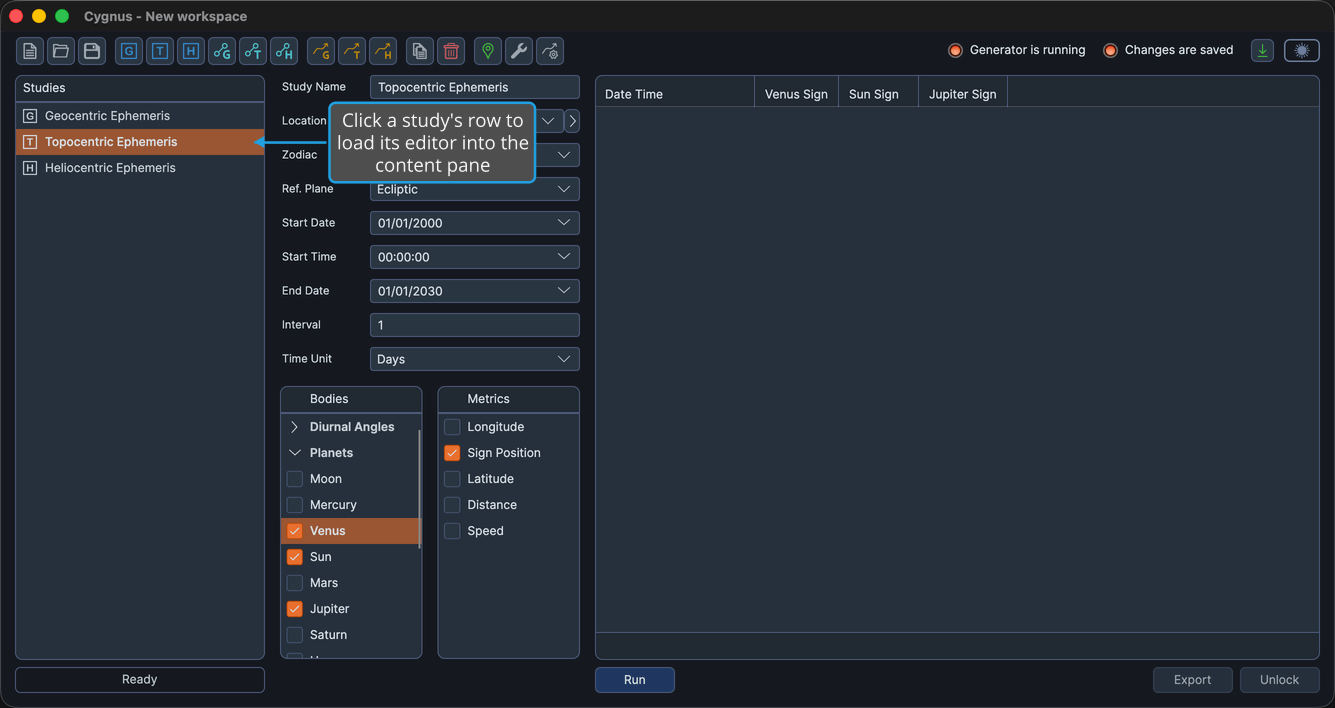
- Click the study's row in the Studies list.
The row is highlighted and the study's editor fills the content pane, replacing the watermark or the previously selected study.
Resize the Studies List
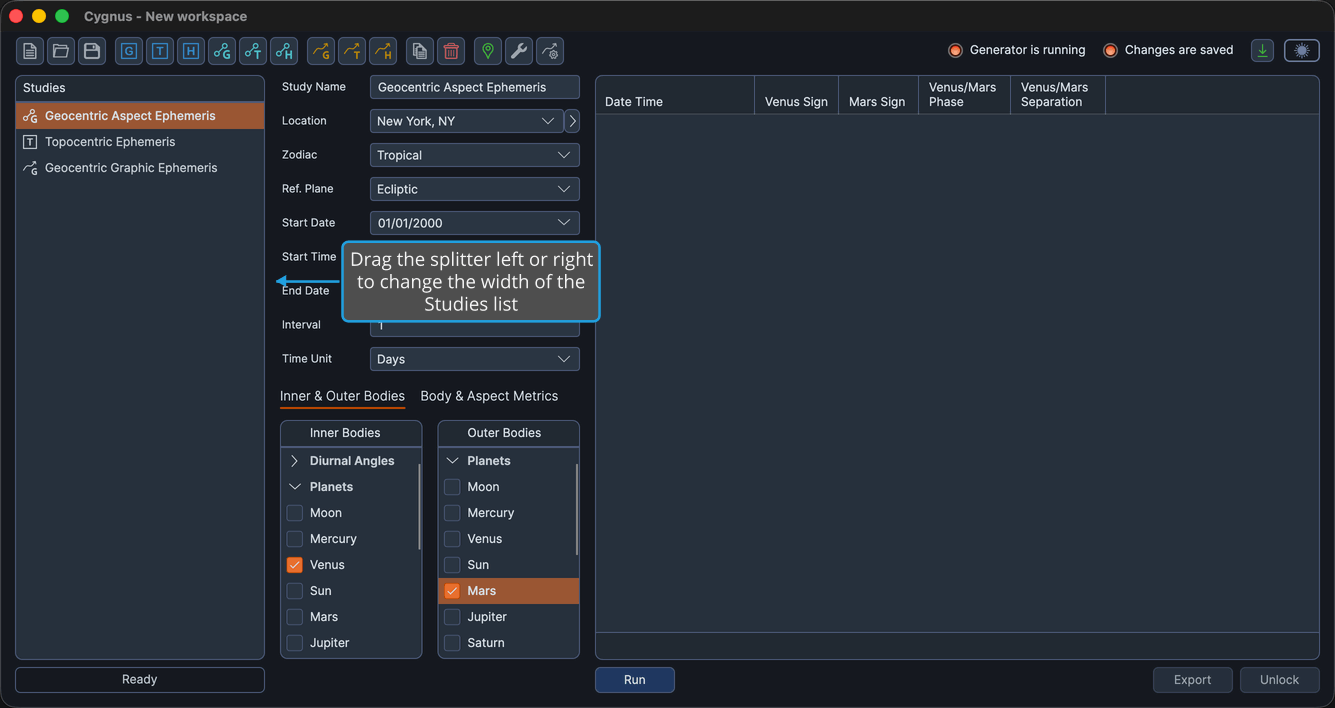
A splitter sits between the Studies list and the study content pane. Widen the list when your study names are long, or narrow it to give the study editor more room.
To change the width of the Studies list:
- Drag the splitter between the Studies list and the study content pane to the left or the right.
The Studies list takes its new width and the study content pane takes the remaining space. The width is limited to between 200 and 350 pixels, so the list can never crowd out the editor.
Studies List Context Menu
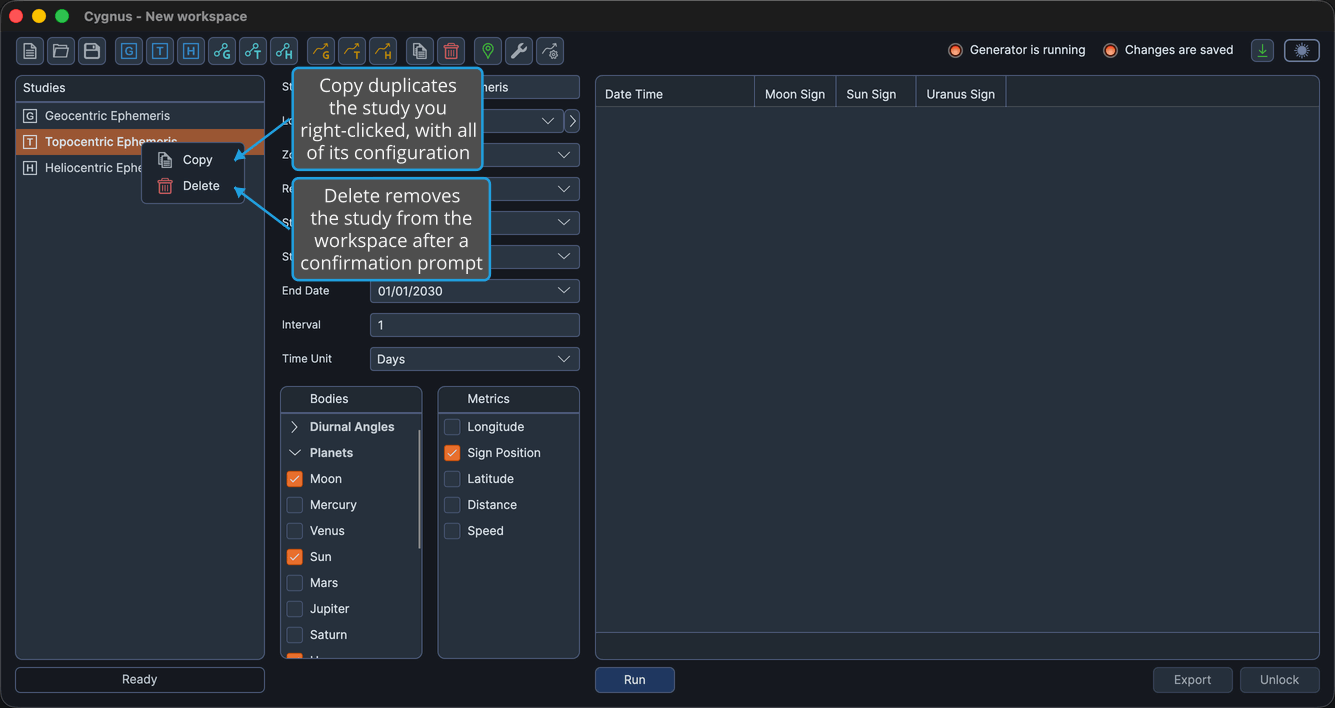
Right-clicking a study in the list opens a short menu that acts on the study you clicked.
| Command | Description | Details |
|---|---|---|
| Copy | Duplicate the selected study, including all of its configuration. | Copy Study |
| Delete | Remove the selected study from the workspace after a confirmation prompt. | Delete Study |
With the Studies list focused, pressing the Delete key removes the selected study, and Alt+Up or Alt+Down moves it one place through the list. See Reorder Studies.