Arcs Table
The Arcs table holds the arc lengths the Mundane Arcs study counts in. Type an arc in degrees in the box below the table and press Enter or click Add, click a row and then its cell to edit an arc, and select rows and press Delete to remove them.
The table is a single-column list of arc lengths in degrees. It sits in the settings of the Mundane Arcs Study, on no tab. The study generates an event each time a body from its Bodies list has traveled a whole-number multiple of one of the arcs since the study's start moment. Every arc must be greater than 0 degrees, and the table holds each value only once.
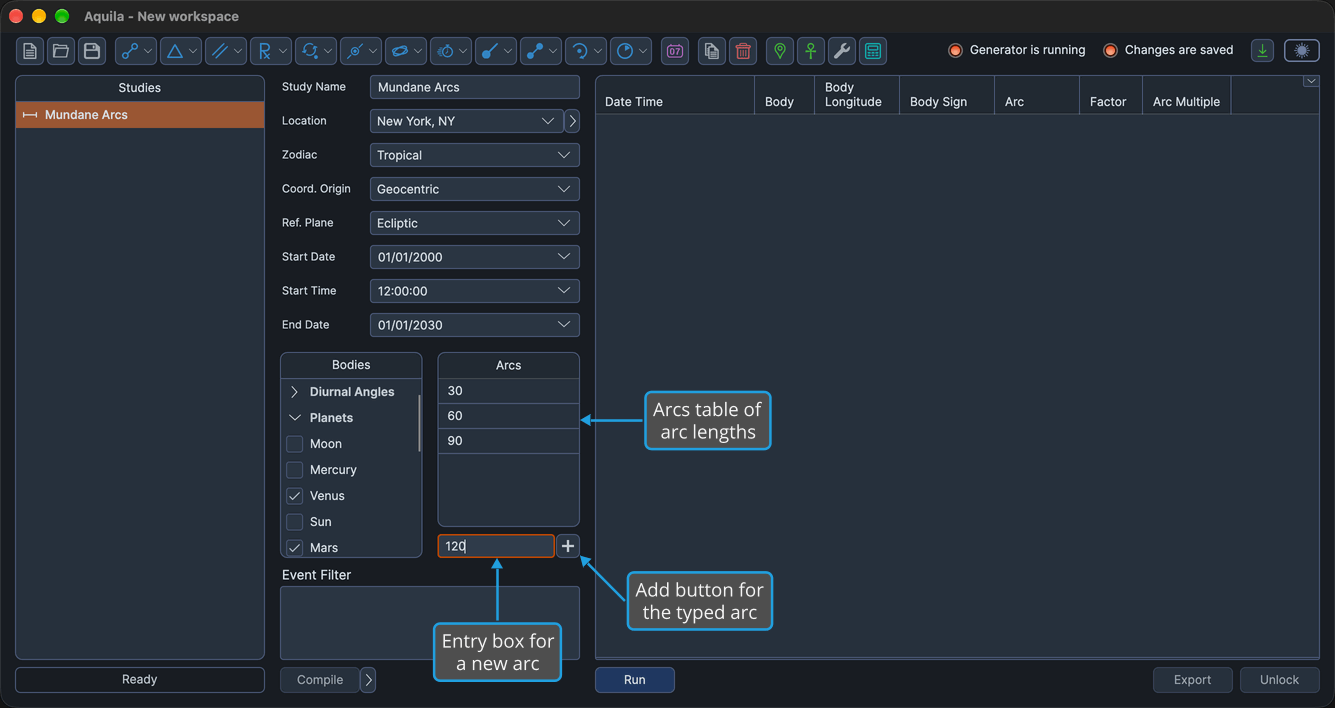
The table's right-click menu holds Delete Selected and Delete All, and the preset items that save a list of arcs and reuse it in other studies, as described in Numeric Table Presets.
The table and its right-click menu are disabled while the study is locked, and the Add button is enabled only while the entry box holds a value and the study is unlocked. Select the study in the Studies list first (Open an Event Generator Study). To change the arcs of a study that has generated its events, unlock it first (Unlock Study).
Add an Arc
To add an arc length, in degrees, to the table:
- Add the arc to the Arcs table (Add a Value to a Numeric Table).
The arc appears at the end of the table, and the entry box empties. An arc that is not greater than 0, or that the table already holds, is not added. Instead of pressing Enter, you can click the Add button to the right of the entry box.
Edit an Arc
To change an arc length already listed in the table:
- Edit the arc in the Arcs table (Edit a Value in a Numeric Table).
The arc takes the new value, and the next time you generate events the study uses it in place of the old one. A value that is not greater than 0, or that the table already holds, is refused, and the cell keeps its old value. A single click on the selected row's cell starts the edit; when the focus was outside the table, the first click only selects the row. Pressing Tab instead of Enter also commits the value and moves the focus on.
Delete Arcs
To remove arc lengths from the table:
- Delete the selected arcs from the Arcs table (Delete Values from a Numeric Table).
The selected arcs are removed from the table. You can select several arcs and delete them together. To delete the selected arcs without the menu, press Delete or Backspace while the table has focus and no cell is being edited. To empty the table, click Delete All on the table's right-click menu (Open a Numeric Table's Context Menu).
Table Column
The table has one column, and its heading is always Arcs.
| Column | Description |
|---|---|
| Arcs | One arc length per row, in degrees. Every value is greater than zero. |
Values are shown with a period as the decimal separator. When you edit a cell, a comma is read as the decimal point.
Related Topics
- Mundane Arcs Study: the study that counts the arcs, and its events table.
- Numeric Table Presets: save the table's arcs as a preset and apply them in other studies.
- Aspects Table: the same kind of table for aspect angles, and the steps to add, edit and delete values.
- Hotspot Degrees Table: the same kind of table for hotspot degrees.
- Bodies List: choose the bodies whose arcs the study counts.
- Unlock Study: delete a study's events so that you can change its settings.