Drag Timeline Events to Another Application
Move part of the timeline straight into a spreadsheet or another application. Select the timeline rows, press on one of the selected rows, drag it onto the other application's window and release. To carry several rows, hold Shift as you press and release Shift before you drop. The other application receives the events as tab-delimited text with a Date Time and Event header line.
Drag Timeline Events into Another Application
Before you start, select the Timeline Study in the Studies list and load its timeline (Load Timeline), so that its table holds events. Make sure that the other application's window is visible, so that you can release the drag over it.
To drag a timeline event into another application:
- Click the event's row in the timeline table.
- Press on the selected row, drag it out of the Aquila window and release it over the other application's window.
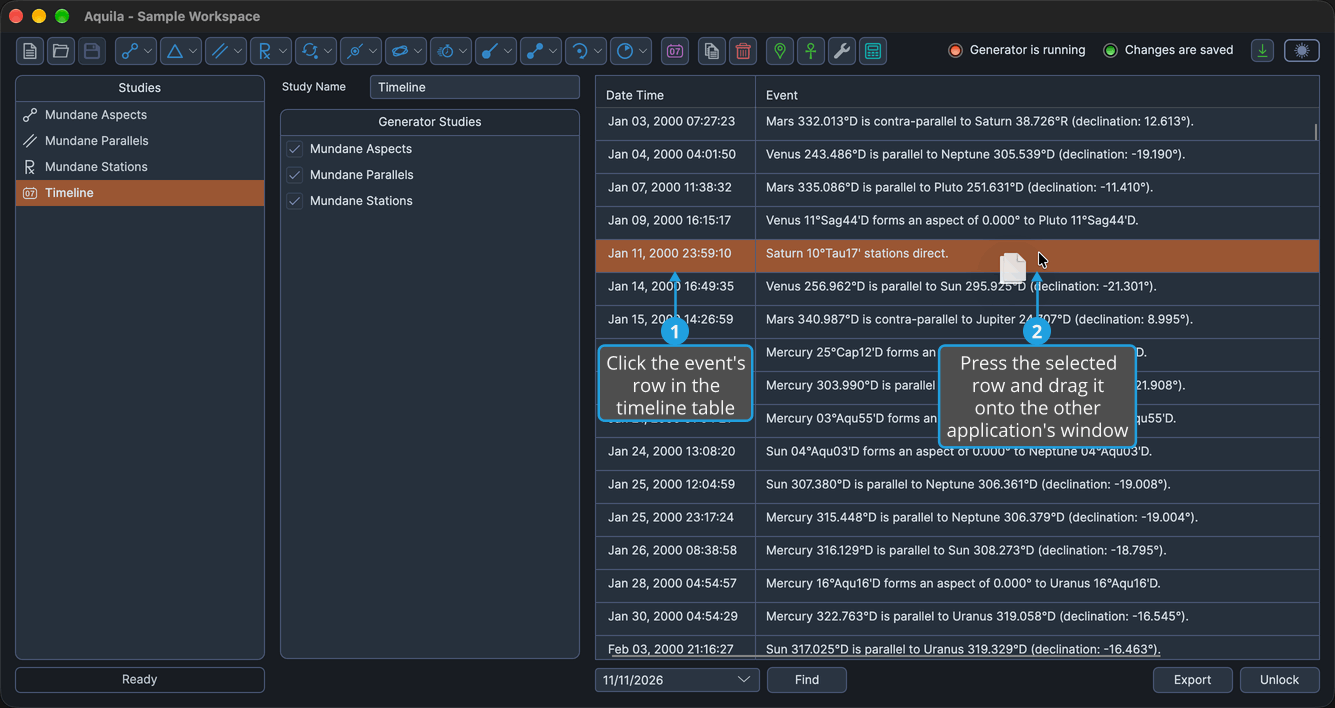
The other application receives the dragged events as tab-delimited text, with a Date Time and Event header line. The drag copies the events, so they stay in the timeline table.
To carry several events, select them before you drag: click the first event's row and Shift-click the last event's row, or Cmd-click (Ctrl-click on Windows) each row to add it to the selection. Holding Shift as you press on any selected row carries every selected row; release Shift before you drop them. Pressing on a row outside the selection carries that row alone.
The drag starts once the pointer has moved four pixels with the button held.
Related Topics
- Timeline Table: select the events to drag.
- Copy Timeline Events: copy selected events to the clipboard as tab-delimited text or a Markdown table.
- Export Timeline: save the whole timeline to a CSV file.
- Drag Events to Another Application: drag events from a generator study's events table.