Generator Studies List
Choose which studies' events make up the timeline. The Generator Studies list of a Timeline Study names every generator study in the workspace, each with a check box. The studies you check are the ones the timeline gathers its events from.
Click the check box of each study to include. To check or uncheck several studies at once, highlight their rows and right-click to choose Select or Deselect, or right-click any row and choose Clear All to uncheck every study. The list is locked while a timeline is loaded; unlock the timeline to change the selection (see Unlock Timeline).
Every procedure on this page needs a Timeline Study open in the study area and unlocked, with no timeline loaded.
Check or Uncheck a Generator Study
Include a generator study's events in the timeline, or leave them out:
- Click the check box beside the study's name in the Generator Studies list.
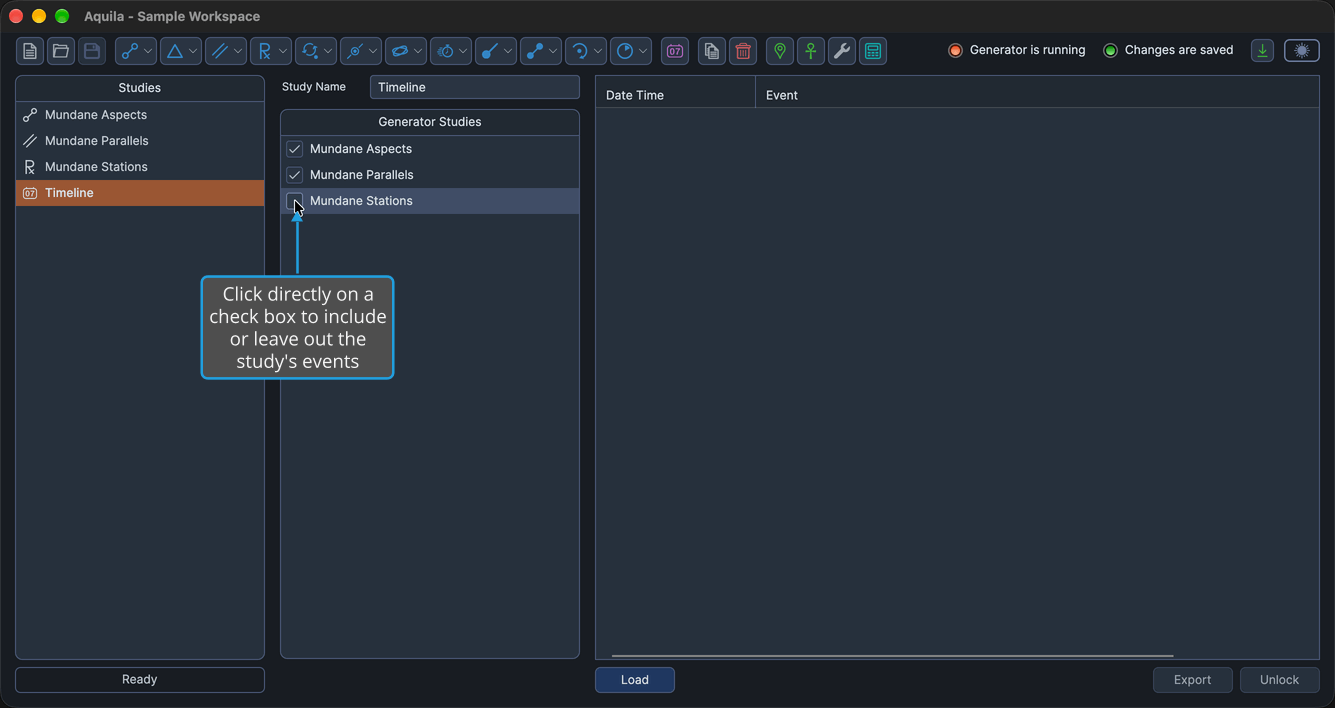
The check box shows the new state. The timeline gathers events from the checked studies the next time you load it (see Load Timeline).
Check Several Studies at Once
Check several generator studies in one action by highlighting their rows and choosing Select from the list's right-click menu. Highlighting a row does not check it: the highlight only marks the rows the menu acts on.
To highlight a range of rows, click the first study's row and Shift-click the last. To add a single row to the highlight or remove it, Cmd-click (Ctrl-click on Windows) the row.
- Highlight the rows of the studies to check in the Generator Studies list by clicking their names, not their check boxes.
- Right-click one of the highlighted rows.
- Click Select on the right-click menu.
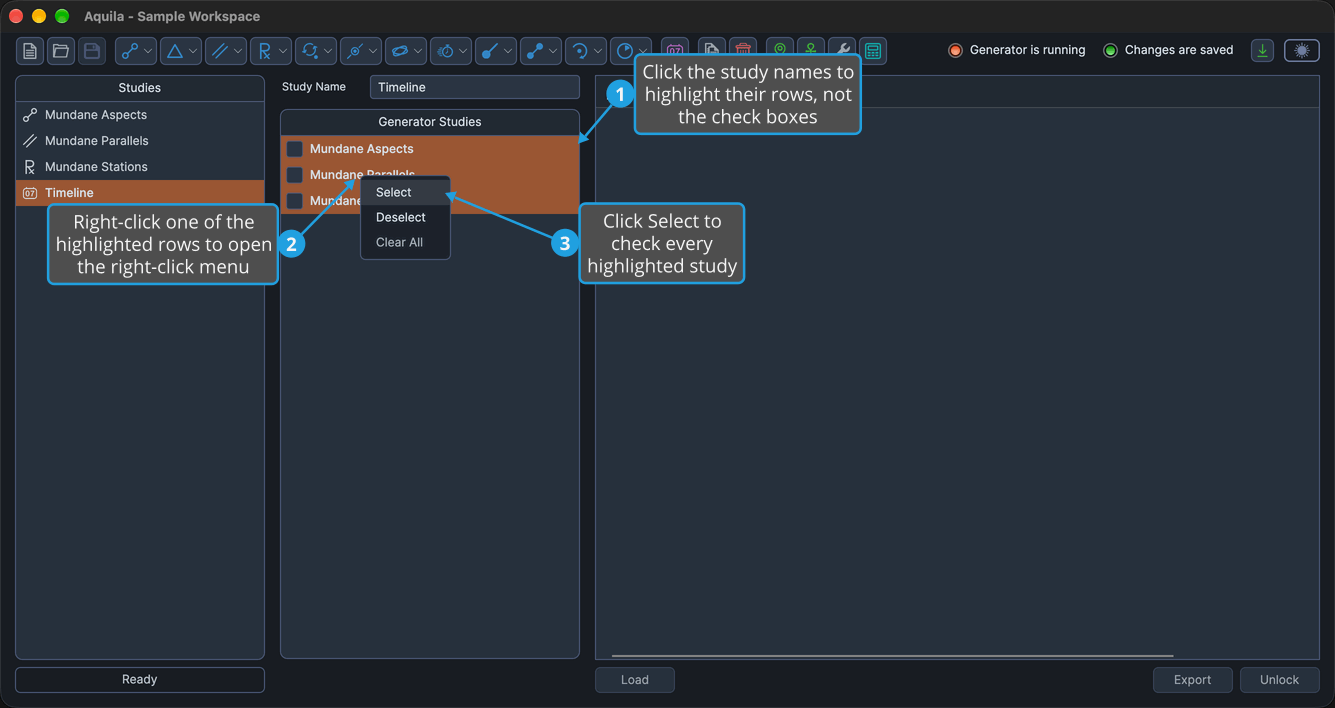
Every highlighted study is checked, and studies that were already checked stay checked. The highlight clears when the menu closes.
Uncheck Several Studies at Once
Uncheck several generator studies in one action by highlighting their rows and choosing Deselect from the list's right-click menu.
To highlight a range of rows, click the first study's row and Shift-click the last. To add a single row to the highlight or remove it, Cmd-click (Ctrl-click on Windows) the row.
- Highlight the rows of the studies to uncheck in the Generator Studies list by clicking their names, not their check boxes.
- Right-click one of the highlighted rows.
- Click Deselect on the right-click menu.
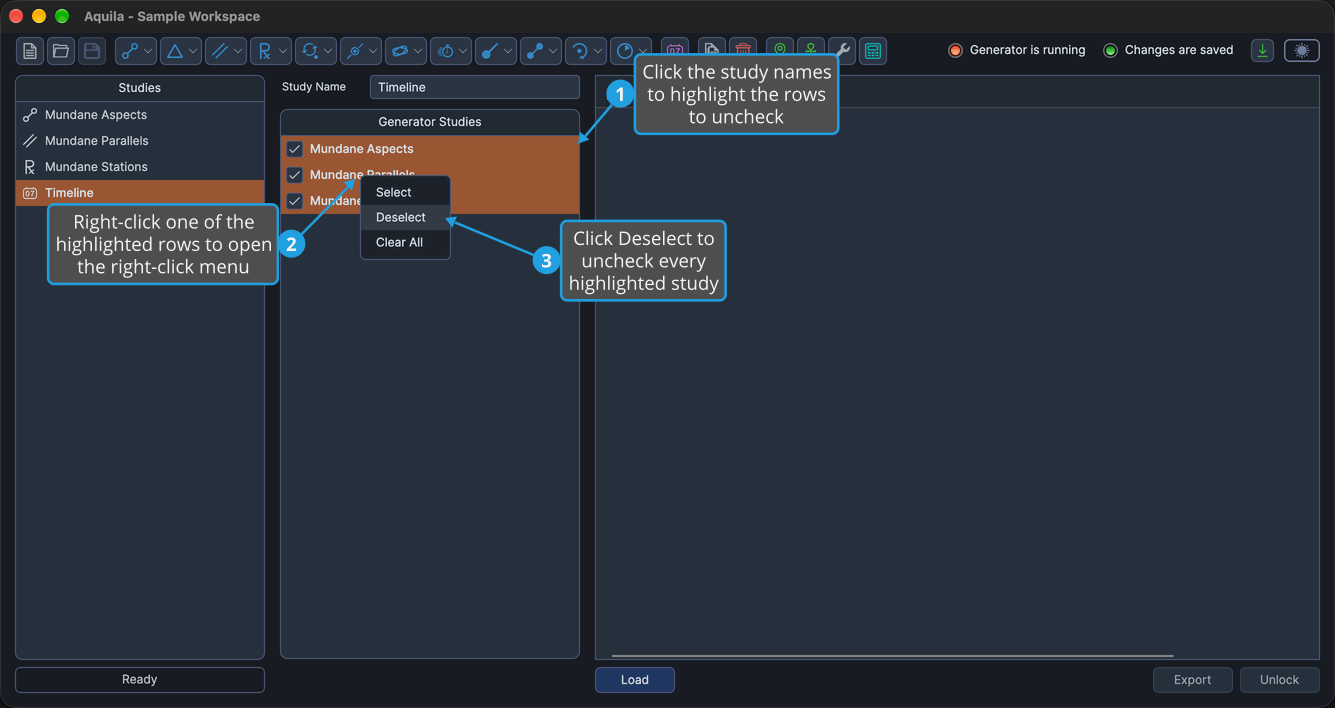
Every highlighted study is unchecked, and studies that were already unchecked stay unchecked. The highlight clears when the menu closes.
Uncheck Every Study
Uncheck all the studies of the list in one action, whichever rows are highlighted. Clear All is available while at least one study is checked.
- Right-click any study row in the Generator Studies list.
- Click Clear All on the right-click menu.
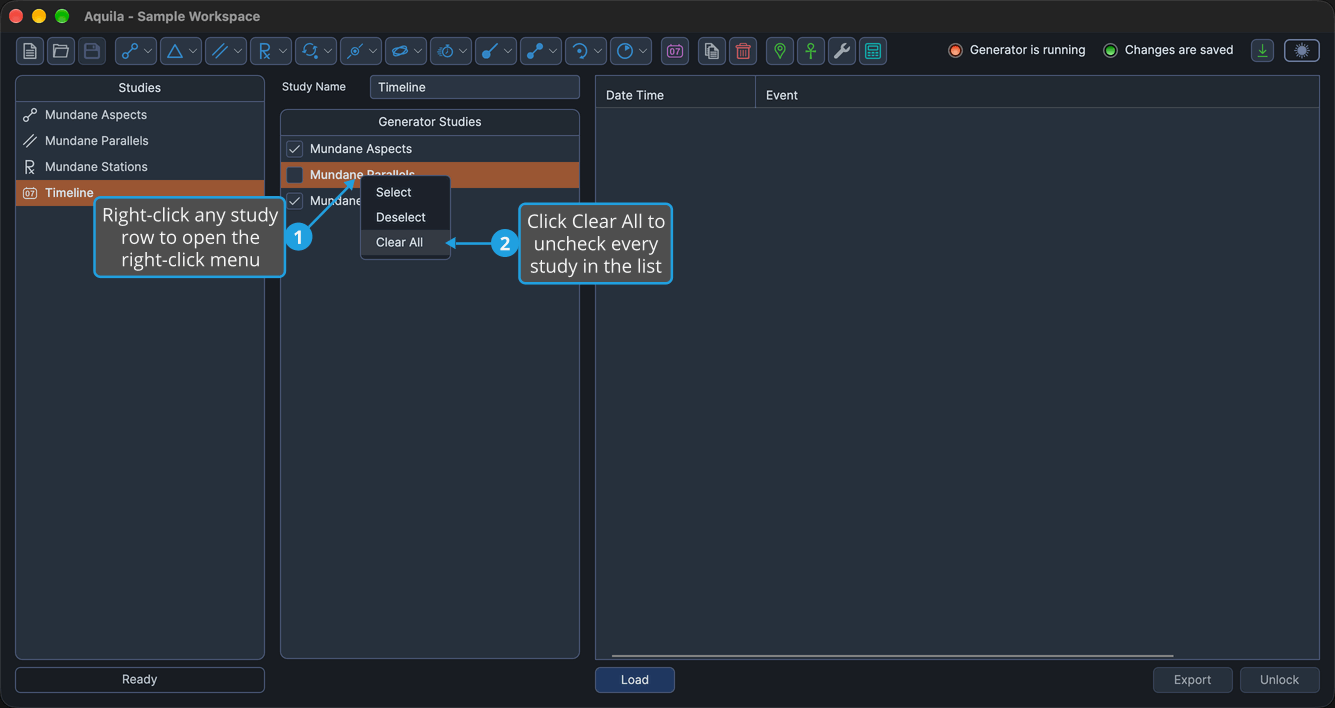
Every study in the Generator Studies list is unchecked.
What the List Shows
The list holds one row for each generator study in the workspace, in the order of the Studies list. Each row shows a check box and the study's name, and a checked check box means the timeline includes that study. Only generator studies are listed: Timeline Studies do not appear.
Aquila defines no entries of its own. The list is built from the studies you create in the workspace, and it is rebuilt whenever the workspace's set of studies changes. You create, copy, reorder and delete the studies themselves in the Studies list (see Studies List).
While the timeline is loaded, the rows are disabled and their check boxes cannot be changed.
Right-Click Menu Commands
Right-click a study row to open the list's right-click menu. It always holds these three commands, and it is disabled while the timeline is loaded.
| Command | Description |
|---|---|
| Select | Checks every highlighted study. |
| Deselect | Unchecks every highlighted study. |
| Clear All | Unchecks every study in the list, whichever rows are highlighted. Available while at least one study is checked. |
Related Topics
- Timeline Study: create a Timeline Study and see how its view is laid out.
- Load Timeline: build the timeline from the checked studies.
- Unlock Timeline: unlock the list to change which studies are checked.
- Generate Events: generate the events that a checked study contributes to the timeline.