Timeline Source Study Selection
A workspace usually holds more studies than belong on any one timeline. The Generator Studies list in a Timeline study's settings column names every event-generating study in the open workspace, one checkbox row per study, so the combination that answers the question at hand can be picked out.
The list keeps itself in step with the workspace: studies appear as they are created, follow their names as they are renamed, and drop out as they are deleted. A workspace holding no generator studies shows an empty list. You can change the checkboxes for as long as the timeline is unlocked; loading the timeline makes the list read-only until it is unlocked again.
Include a Study in the Timeline
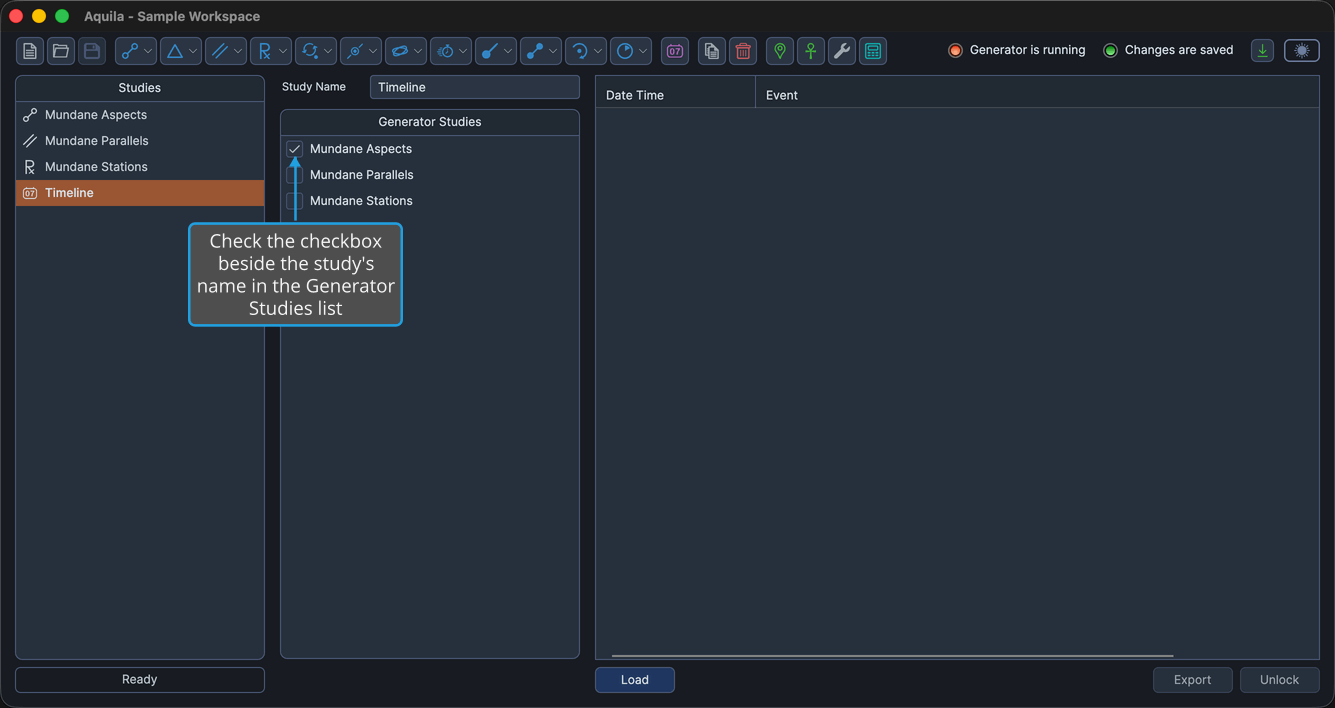
To add a single generator study to the set the timeline draws from:
- Check the checkbox beside the study's name in the Generator Studies list.
The timeline merges that study's events the next time you load it.
The Row Context Menu
Right-clicking any study row opens a context menu that checks and unchecks rows in bulk. Select and Deselect act on the rows currently highlighted in the list; Clear All acts on the whole list.
| Command | What It Does |
|---|---|
| Select | Checks every row currently highlighted in the list |
| Deselect | Unchecks every row currently highlighted in the list |
| Clear All | Unchecks every study in the list, highlighted or not |
The menu is unavailable while the timeline is locked.
Select the Highlighted Source Studies
To check several source studies at once rather than one checkbox at a time:
- Highlight one or more study rows in the Generator Studies list.
- Right-click a highlighted row to open the context menu.
- Click Select in the context menu.
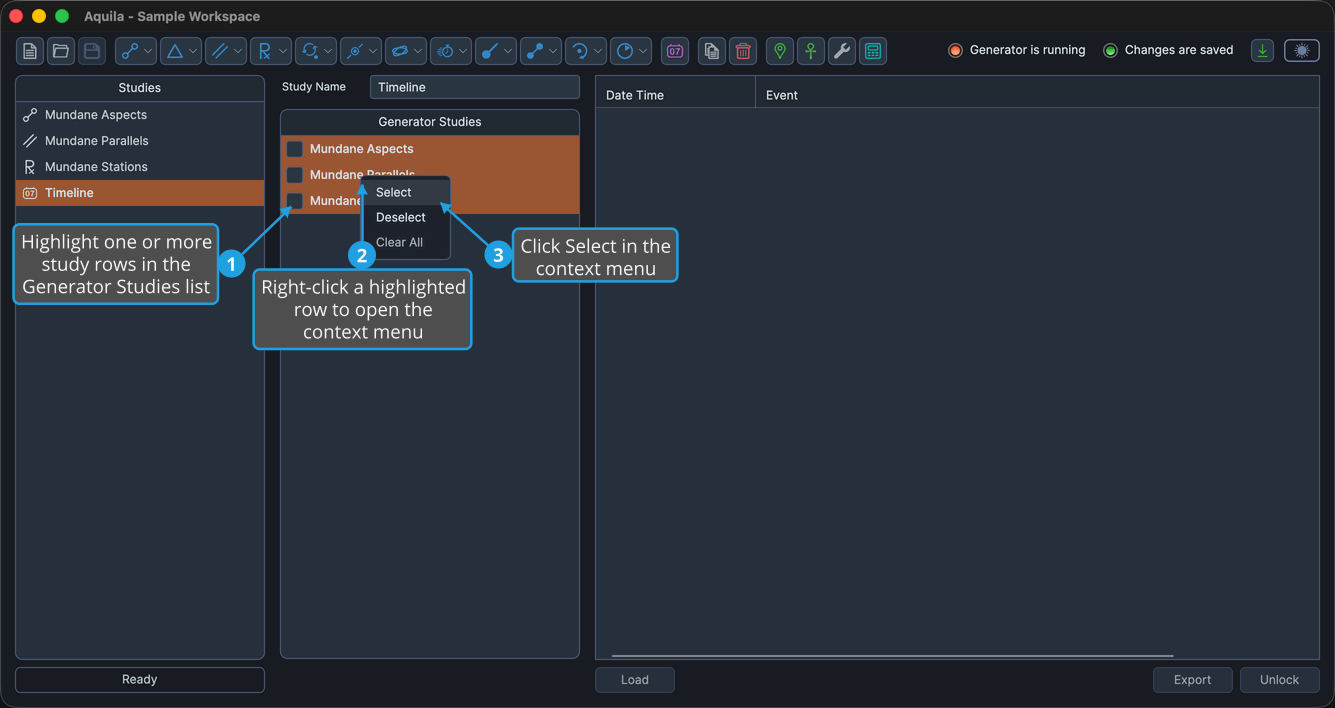
Aquila checks every highlighted row, and all of those studies feed the timeline.
Cmd-click to toggle individual rows in the highlight; Shift-click to extend the highlight to a range. On Windows use Ctrl-click in place of Cmd-click.
Deselect the Highlighted Source Studies
To uncheck several source studies at once:
- Highlight one or more study rows in the Generator Studies list.
- Right-click a highlighted row to open the context menu.
- Click Deselect in the context menu.
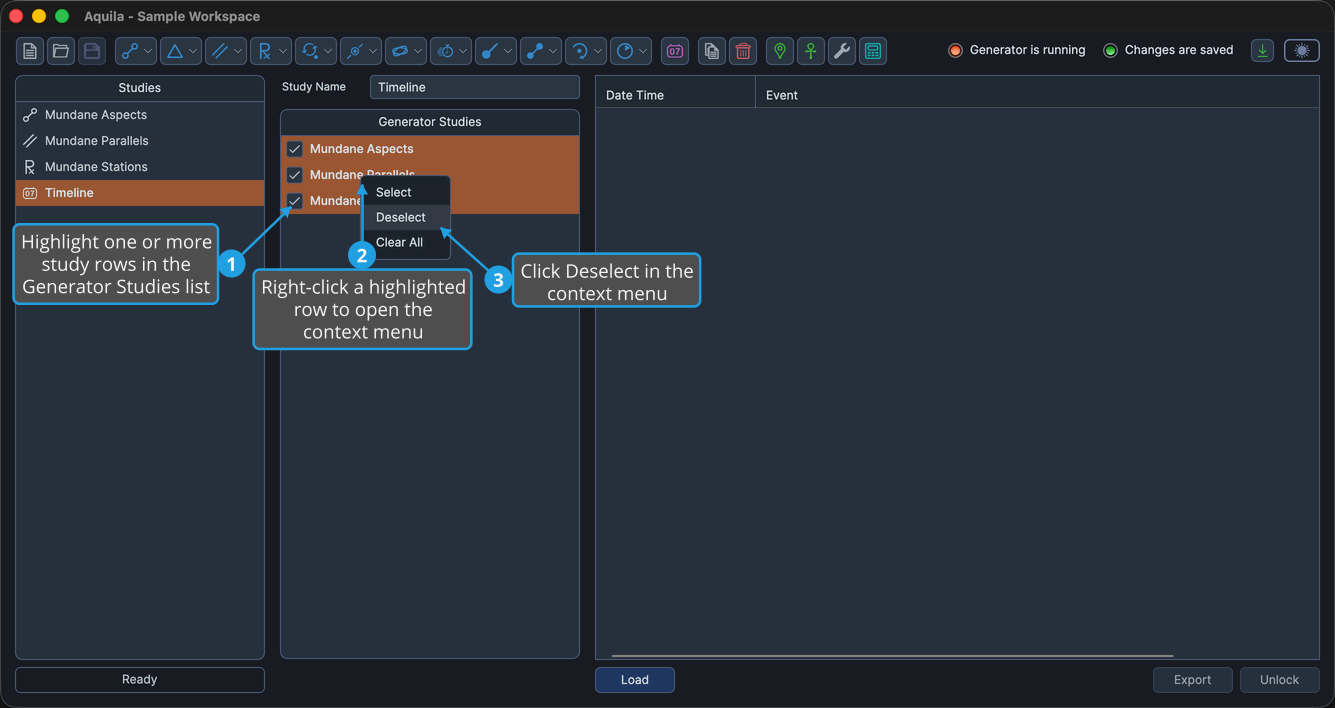
Aquila unchecks every highlighted row, and those studies no longer feed the timeline.
Cmd-click to toggle individual rows in the highlight; Shift-click to extend the highlight to a range. On Windows use Ctrl-click in place of Cmd-click.
Clear All Source Studies
To empty the selection in one action before building a fresh combination:
- Right-click a study row in the Generator Studies list to open the context menu.
- Click Clear All in the context menu.
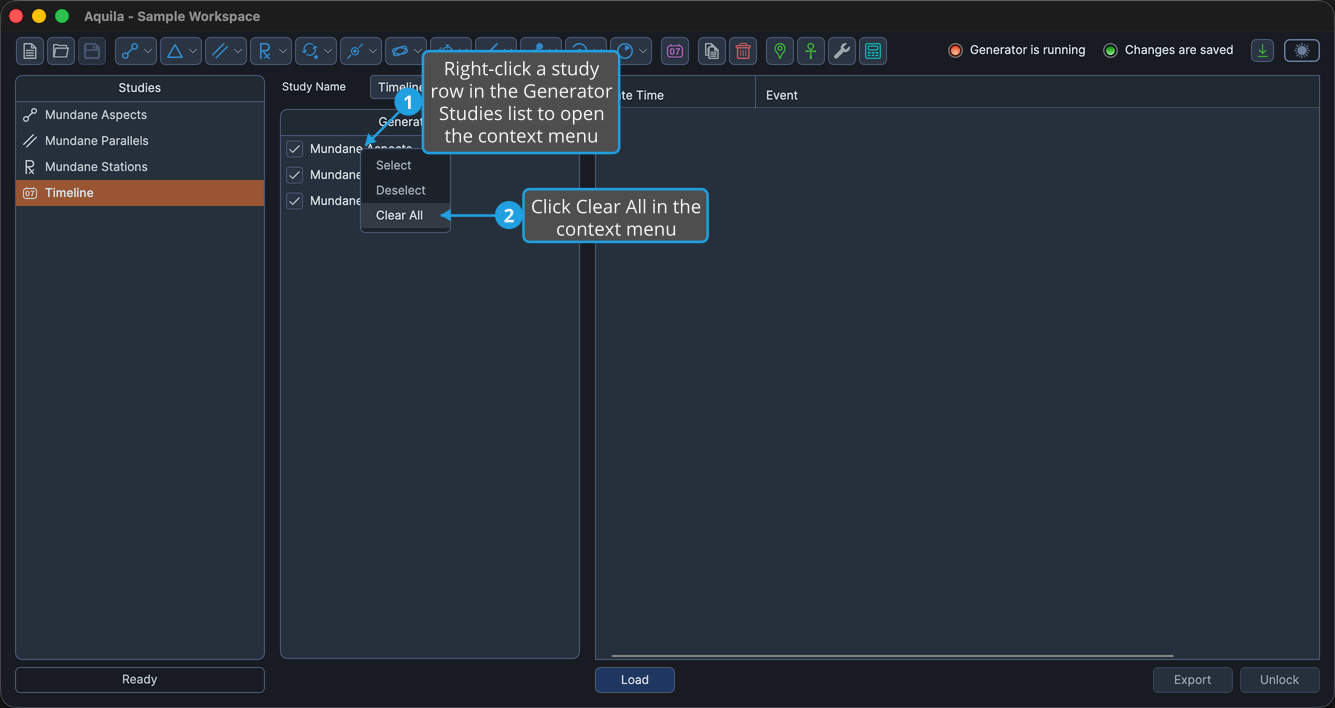
Aquila unchecks every study in the list, and none of them feed the timeline until you check them again.