Selectable Bodies List
Every event-generator study presents one or more Selectable Bodies lists. Each row in a list represents a celestial body, and a checkbox controls whether that body participates in event generation. The list shown depends on the study and on the Coord. Origin ephemeris parameter, because heliocentric and geocentric calculations make different bodies available.
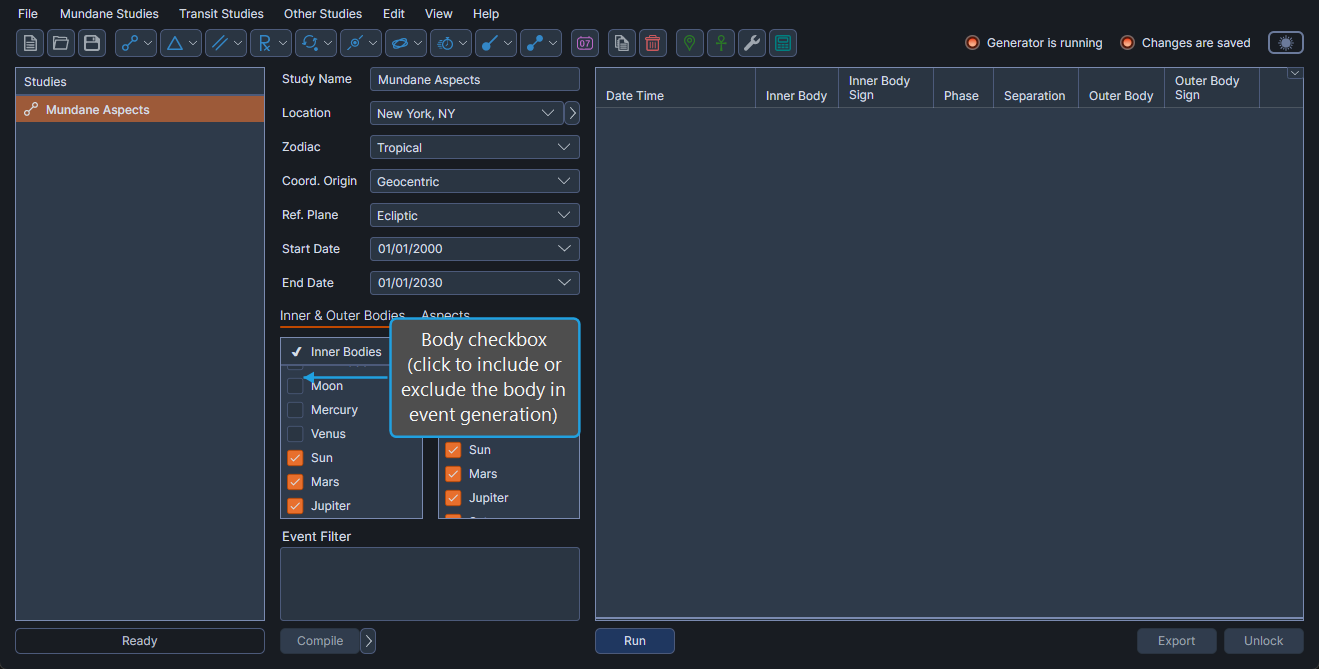
The check mark in the column header is decorative; only the row checkboxes can be toggled.
Configure Body Selections
To choose which celestial bodies the study examines:
- Click the checkbox beside each body to include it; clear the checkbox to exclude it.
Bodies must be checked for the study to detect events involving them.
Bulk Select Bodies
To check several body rows at once:
- Click the first body row to highlight it.
- Shift-click or Ctrl-click additional rows to extend the highlight.
- Right-click any highlighted row and click Select in the context menu.
All highlighted rows are checked.
Bulk Deselect Bodies
To uncheck several body rows at once:
- Click the first body row to highlight it.
- Shift-click or Ctrl-click additional rows to extend the highlight.
- Right-click any highlighted row and click Deselect in the context menu.
All highlighted rows are unchecked.
Bodies Available by Coordinate Origin
The set of bodies in each list depends on the Coord. Origin selected in the Ephemeris Parameters. Two contexts apply:
Geocentric or Topocentric
When Coord. Origin is set to Geocentric or Topocentric, the body list includes the four cardinal points, the planetary bodies, the lunar axes, and the smaller bodies (25 bodies total):
Cardinal points:
- Ascendant
- Medium Coeli
- Descendant
- Imum Coeli
Planetary bodies:
- Moon
- Mercury
- Venus
- Sun
- Mars
- Jupiter
- Saturn
- Uranus
- Neptune
- Pluto
- Tenet
Lunar axes:
- Lunar Apogee
- Mean Apogee
- North Node
- Mean Node
Smaller bodies:
- Vesta
- Juno
- Ceres
- Pallas
- Chiron
- Pholus
The exact subset present in a particular list depends on the host study (for example, the Outer Bodies list of the Mundane Aspects Study omits the cardinal points).
Heliocentric
When Coord. Origin is set to Heliocentric, the cardinal points and lunar axes are not available, and the body list includes the planetary bodies and the smaller bodies (16 bodies total):
Planetary bodies:
- Mercury
- Venus
- Earth
- Mars
- Jupiter
- Saturn
- Uranus
- Neptune
- Pluto
- Tenet
Smaller bodies:
- Vesta
- Juno
- Ceres
- Pallas
- Chiron
- Pholus
Body List Presets
A body list does not have a presets flyout button. The right-click context menu on any list row is the access point for the preset commands.
Apply Preset From List Context Menu
To apply a saved body-list preset (e.g., "Inner Planets") to populate the body checkboxes:
- Right-click any row within the body list.
- Click the Presets menu item to view the submenu.
- Click the desired preset name to apply it.
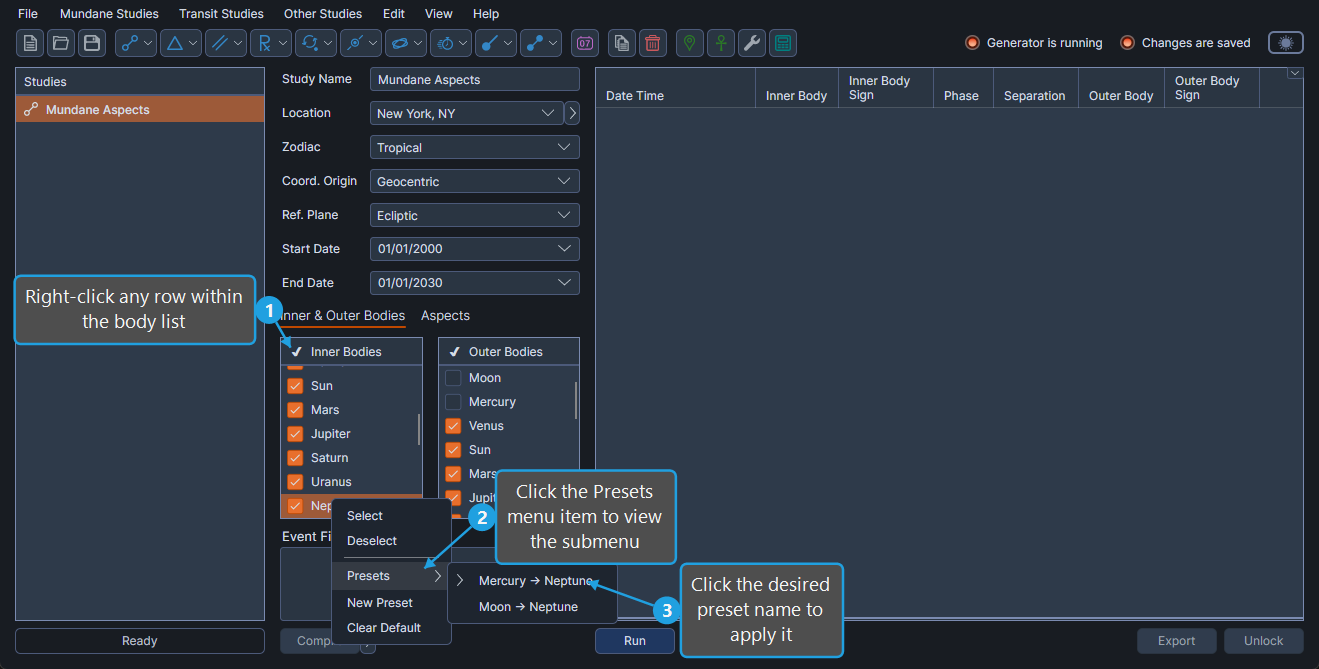
The body checkboxes update to match the selections stored in the preset.
Save a New Body List Preset
To save the current body checkboxes as a new named preset:
- Right-click any row within the body list.
- Click New Preset in the context menu.
- Type a name for the preset in the Name Entry dialog and click OK.
Set the Default Body List Preset
The default preset is auto-applied to newly created studies. To set the default preset:
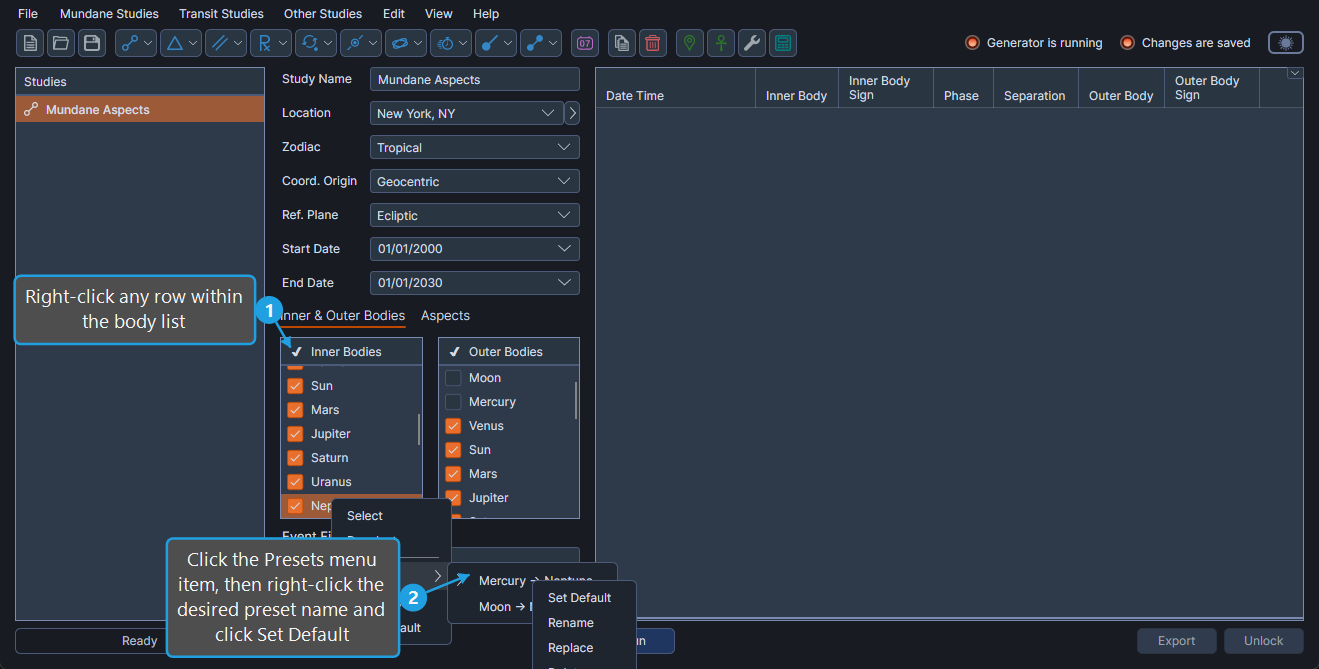
- Right-click any row within the body list.
- Click the Presets menu item, then right-click the desired preset name and click Set Default.
Clear the Default Body List Preset
To remove the default-preset designation:
- Right-click any row within the body list.
- Click Clear Default in the context menu.
Rename a Body List Preset
To change the displayed name of a preset:
- Right-click any row within the body list.
- Click the Presets menu item, then right-click the targeted preset name and click Rename.
- Type the new name in the Name Entry dialog and click OK.
Replace a Body List Preset
To overwrite an existing preset with the current body selections:
- Right-click any row within the body list.
- Click the Presets menu item, then right-click the targeted preset name and click Replace.
- Click Yes to confirm the replacement.
Delete a Body List Preset
To remove a preset:
- Right-click any row within the body list.
- Click the Presets menu item, then right-click the targeted preset name and click Delete.
- Click Yes to confirm the deletion.