Apply Default Events Table Layout
Return the events table to your standard arrangement of columns. Apply default layout, the first command on the menu of the small chevron button at the top-right corner of the events table, replaces the study's own column layout (which columns are visible, and their order) with the default layout saved for its type of study. You save that default with Save Default Events Table Layout.
Apply the Default Events Table Layout
Return the events table's columns to the default layout saved for this type of study. A default layout must already be saved for the study's type (see Save Default Events Table Layout). Select the study in the Studies list first (see Open an Event Generator Study).
- Click the chevron button at the top-right corner of the events table.
- Click Apply default layout in the menu.
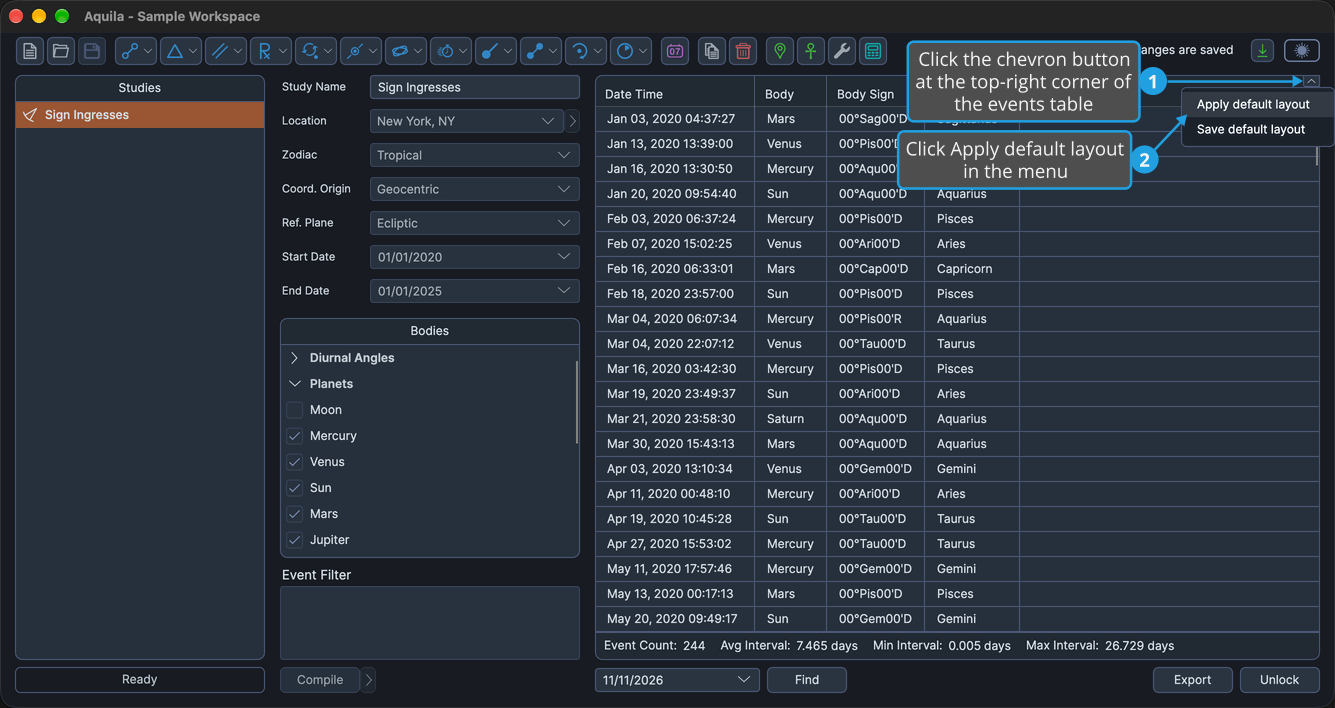
The events table shows the default layout's visible columns in its order, and a brief Layout Applied message confirms the change.
If no default has been saved for the study's type, the Layout Applied message still appears but the columns do not change, and the study's own saved column layout is cleared, so the arrangement you see is no longer stored with the study. Columns the study's reference plane cannot show stay unavailable after the default is applied (see Toggle Column Visibility).
Events Table Layout Menu
The chevron button opens its menu below the button, and the chevron turns while the menu is open. The menu holds two commands:
| Command | Description |
|---|---|
| Apply default layout | Replaces the study's column layout with the default saved for its type of study. |
| Save default layout | Stores the table's current arrangement of columns as that default. See Save Default Events Table Layout. |