Save Default Events Table Layout
Arrange the events table once and have every study of the same type show its events that way. Save default layout, the second command on the menu of the small chevron button at the top-right corner of the events table, stores the table's current column layout (which columns are visible, and their order) as the default for the study's type.
Save the Events Table Layout as the Default
Store the events table's current column layout as the default for this type of study. Before you start, select the study in the Studies list (see Open an Event Generator Study) and arrange its events table to show the columns you want to keep, in the order you want them (see Toggle Column Visibility and Reorder Events Table Columns).
- Click the chevron button at the top-right corner of the events table.
- Click Save default layout in the menu.
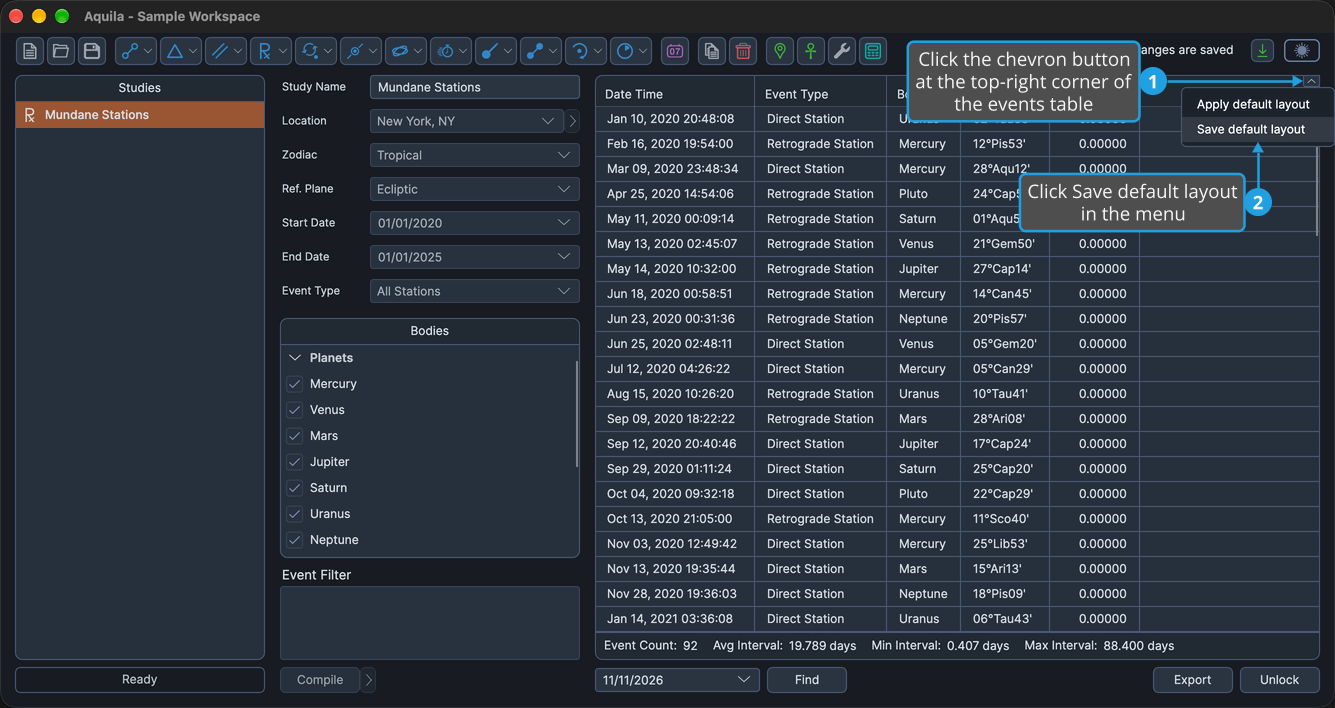
The table's visible columns and their order are stored as the default for the study's type, and a brief Layout Saved message confirms it.
How Aquila Uses the Default Layout
The default layout belongs to a type of study, not to a single study:
- Every new study of that type starts with the default layout.
- Apply Default Events Table Layout returns a study of that type to the default layout.