Events Table Layout Menu
Having arranged an events table once, you rarely want to rebuild the arrangement for the next study of the same type. The layout menu records the arrangement as the default for that study type, and puts it back whenever you want it.
The menu opens from a small chevron button at the top-right corner of the events table.
Menu Commands
| Command | What It Does |
|---|---|
| Apply default layout | Returns the table's columns to the saved default visibility and order for this study type. |
| Save default layout | Records the table's current column visibility and order as the default for this study type. |
Save the Default Layout
To record the current arrangement as the default for this study type:
- Click the chevron button at the top-right of the events table.
- Click Save default layout in the flyout.
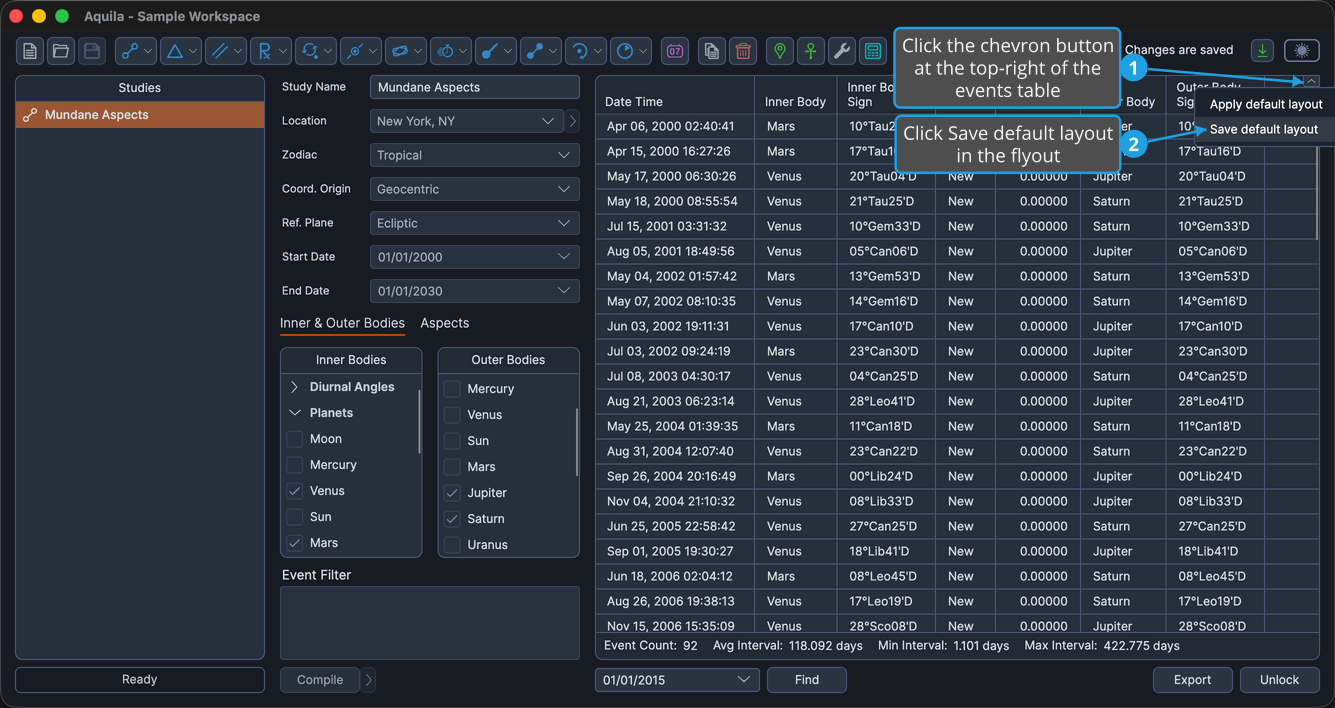
Aquila stores the current column visibility and order, and keeps them between sessions, so the next study of that type opens arranged the same way.
Column widths are not part of the saved layout. Only which columns are visible, and the order they sit in, are recorded.
Apply the Default Layout
To put the table back to the saved default after rearranging it:
- Click the chevron button at the top-right of the events table.
- Click Apply default layout in the flyout.
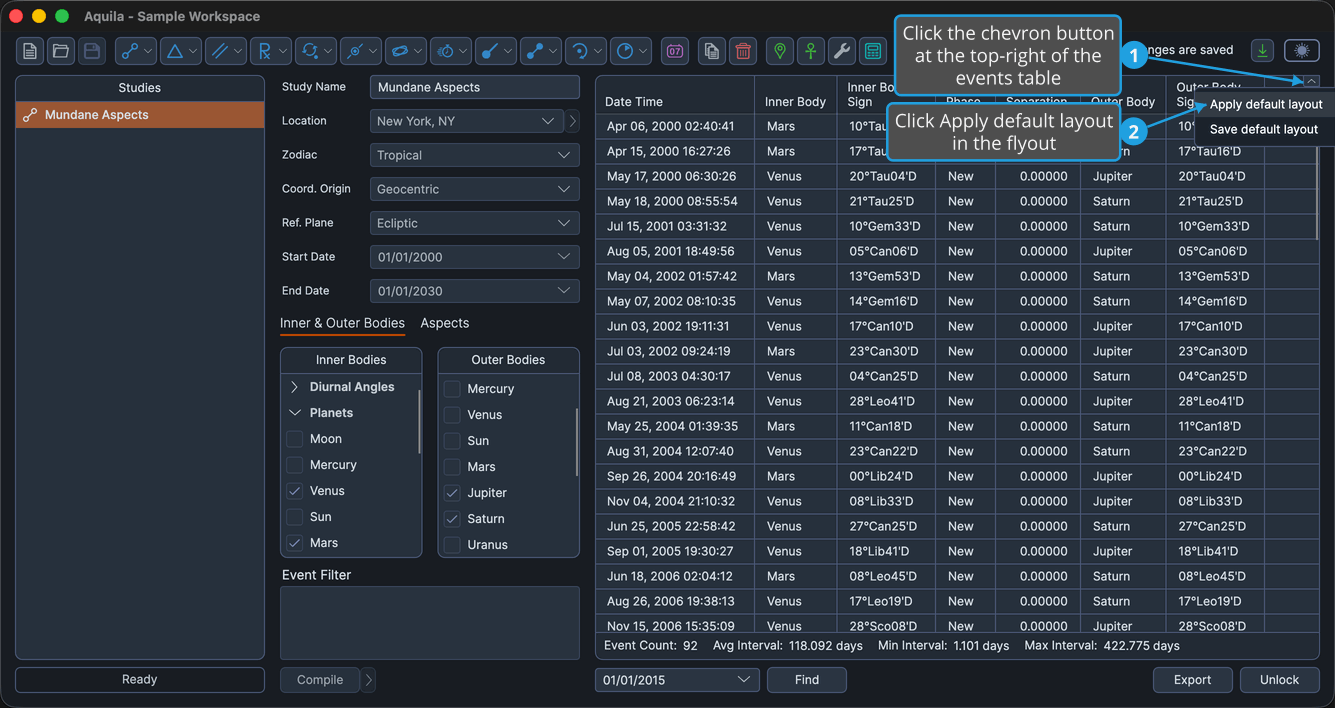
The table's columns return to the saved default visibility and order. This command needs a default layout to have been saved for the study type first.