Graph Settings
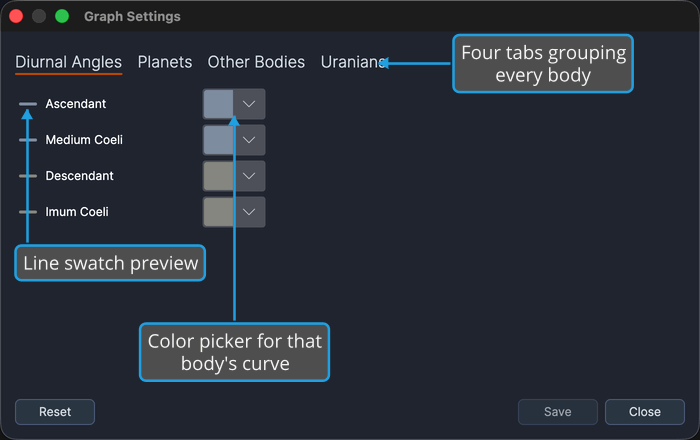
The Graph Settings window holds the line color assigned to each celestial body on a graphic ephemeris plot. Colors that read well against your chosen theme are what make a plot with a dozen curves legible. A body's color, together with its dash pattern, is how you tell one series from another. That matters because the hover readout names the body but not the metric.
Colors are grouped across four tabs, and every body row carries a line-swatch preview, the body's name, and a color picker. A tab fills its first column with up to eight rows and spills the rest into a second column, so the Planets and Other Bodies tabs read across two columns while the four-row Diurnal Angles tab and the eight-row Uranians tab fill only the first.
Open the Graph Settings Window
To open the window:
- Open the Edit menu.
- Click Graph Settings in the Edit menu.
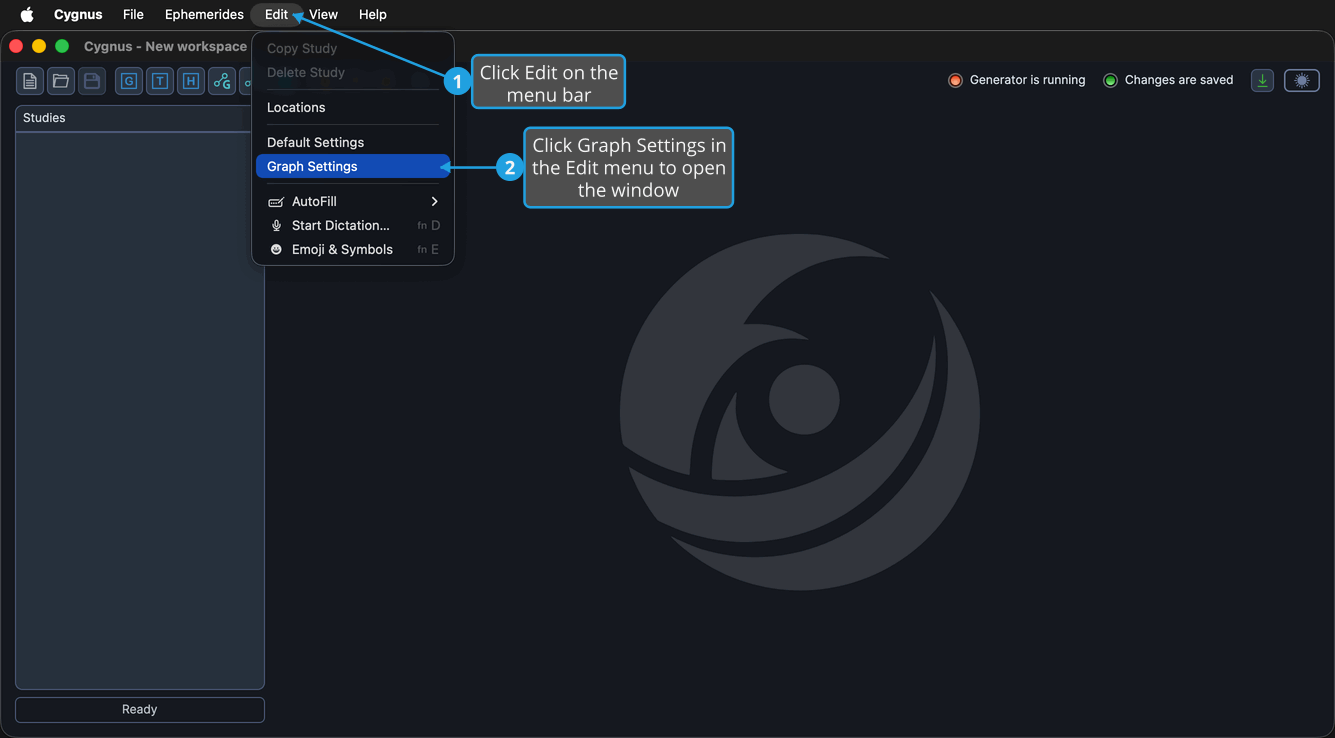
The window opens centered on screen showing the Diurnal Angles tab. If it is already open, the command brings it back to the front rather than opening a second copy.
The Graph Settings button on the Toolbar opens the same window.
Which Bodies Are on Which Tab
| Tab | Bodies |
|---|---|
| Diurnal Angles | Ascendant, Medium Coeli, Descendant, Imum Coeli |
| Planets | Moon, Mercury, Venus, Sun, Earth, Mars, Jupiter, Saturn, Uranus, Neptune, Pluto, Tenet |
| Other Bodies | Lunar Apogee, Mean Apogee, North Node, Mean Node, Vesta, Juno, Ceres, Pallas, Chiron, Pholus, All Other Bodies |
| Uranians | Cupido, Hades, Zeus, Kronos, Apollon, Admetos, Vulkanus, Poseidon |
The window covers every body a graphic study can plot in either coordinate frame, which is why Earth appears on the Planets tab alongside the Sun even though the two never appear together in one study's Bodies list. The All Other Bodies row on the Other Bodies tab sets the color used for any body with no entry of its own.
Set a Body's Graph Color
The body you want may be on any of the four tabs; the table above shows which.
To change the color a body's curve is drawn in:
- Click the tab holding the body you want.
- Click the color picker on the body's row.
- Click the color you want in the picker's palette.
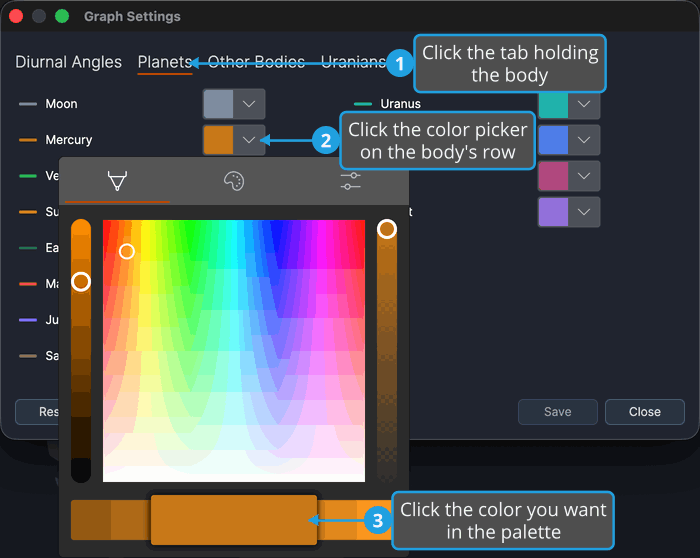
The line-swatch preview beside the body's name repaints in the color you chose, and the Save button becomes enabled.
Save the Graph Settings
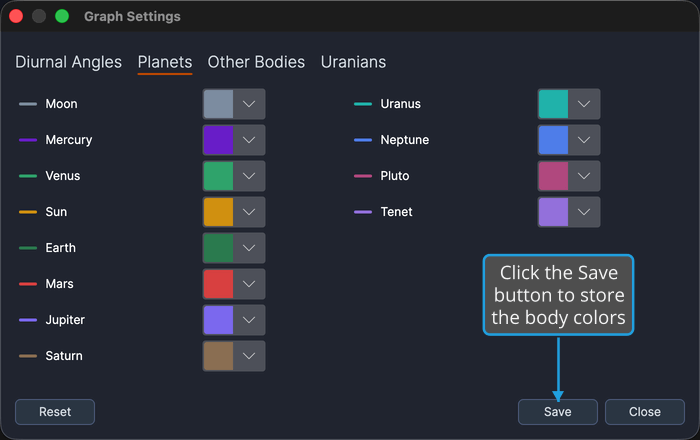
- Click the Save button.
The colors are stored and graphic ephemeris studies draw with them from then on. Save is disabled until at least one color has changed.
Reset the Graph Colors to Their Defaults
To discard every custom color and go back to the built-in palette:
- Click the Reset button.
- Confirm the reset. See Confirm a Yes/No Confirmation Prompt.
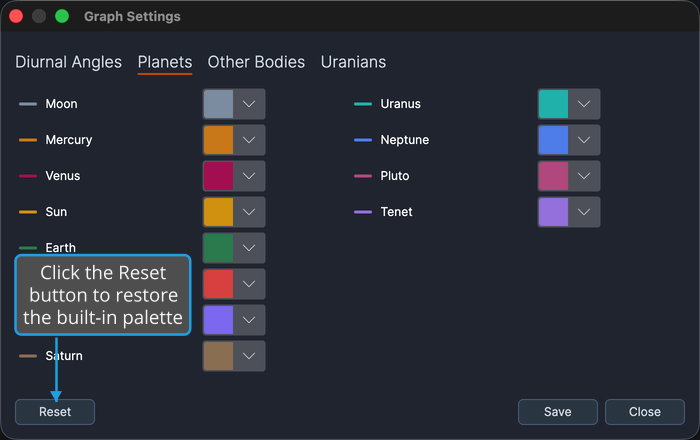
Every color picker and line swatch across all four tabs takes its built-in default, and the Save button becomes enabled so you can store the result.
Close the Graph Settings Window
- Click the Close button.
If the window still holds unsaved color changes, the "Unsaved Changes" prompt appears first rather than the window closing straight away. See Save Changes from the Unsaved Changes Prompt.